Apps & Websites
See what you worked in, with the icon to match
The Apps & Websites page is the record behind your time entries. It ranks the apps and websites you used, lays them out on a timeline, and lists every tracking event in order. Each app and website shows its own icon, so you can read a day at a glance.
Timeline
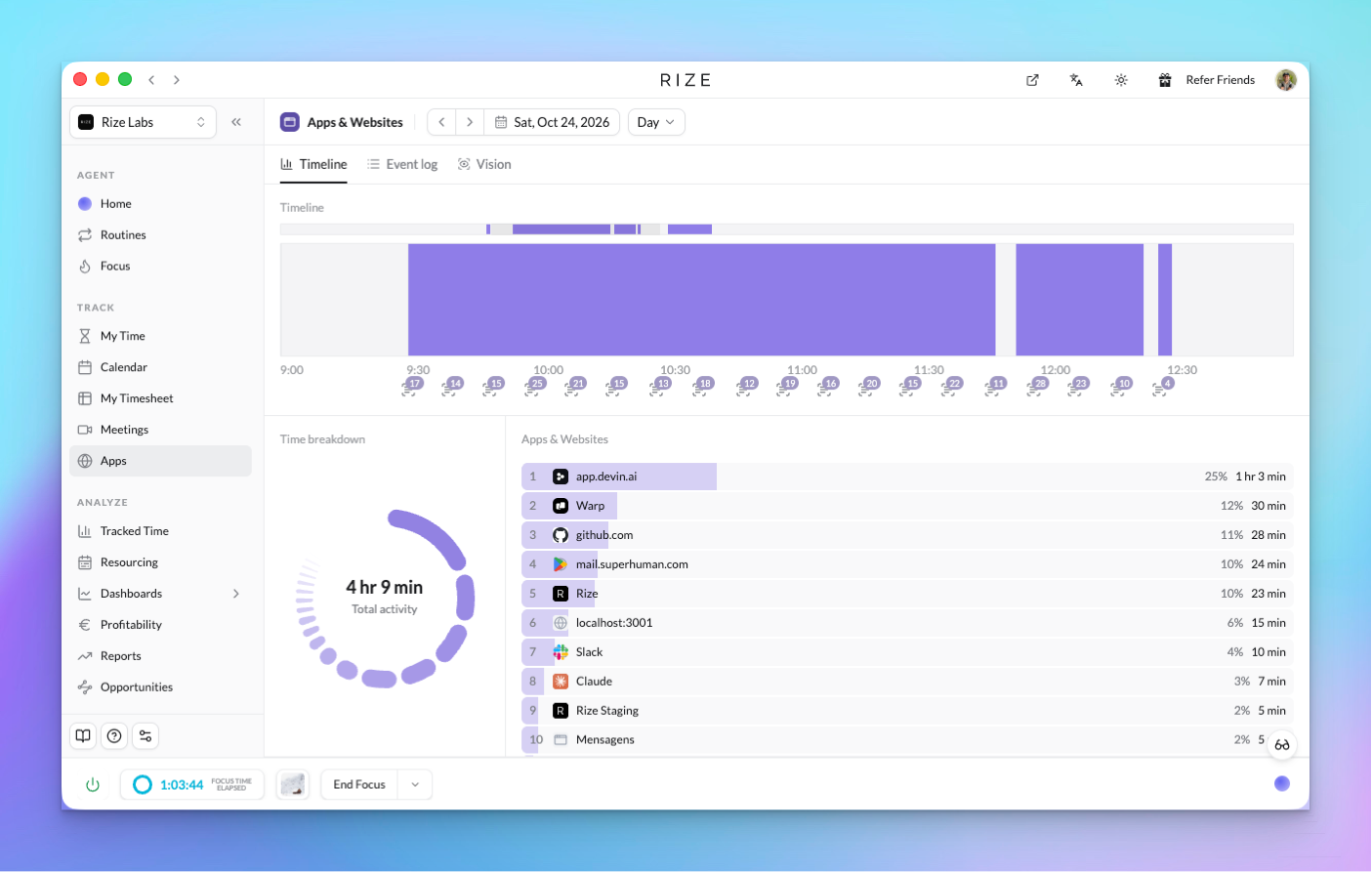
The Timeline tab shows tracked activity across the day as a bar, with the app icon of each stretch marked below the time axis. Beneath it, Time breakdown totals the period and Apps & Websites ranks every app and website by time spent with its share of the total. Change the period with the date picker and the Day, Week, or Month range.
Event log
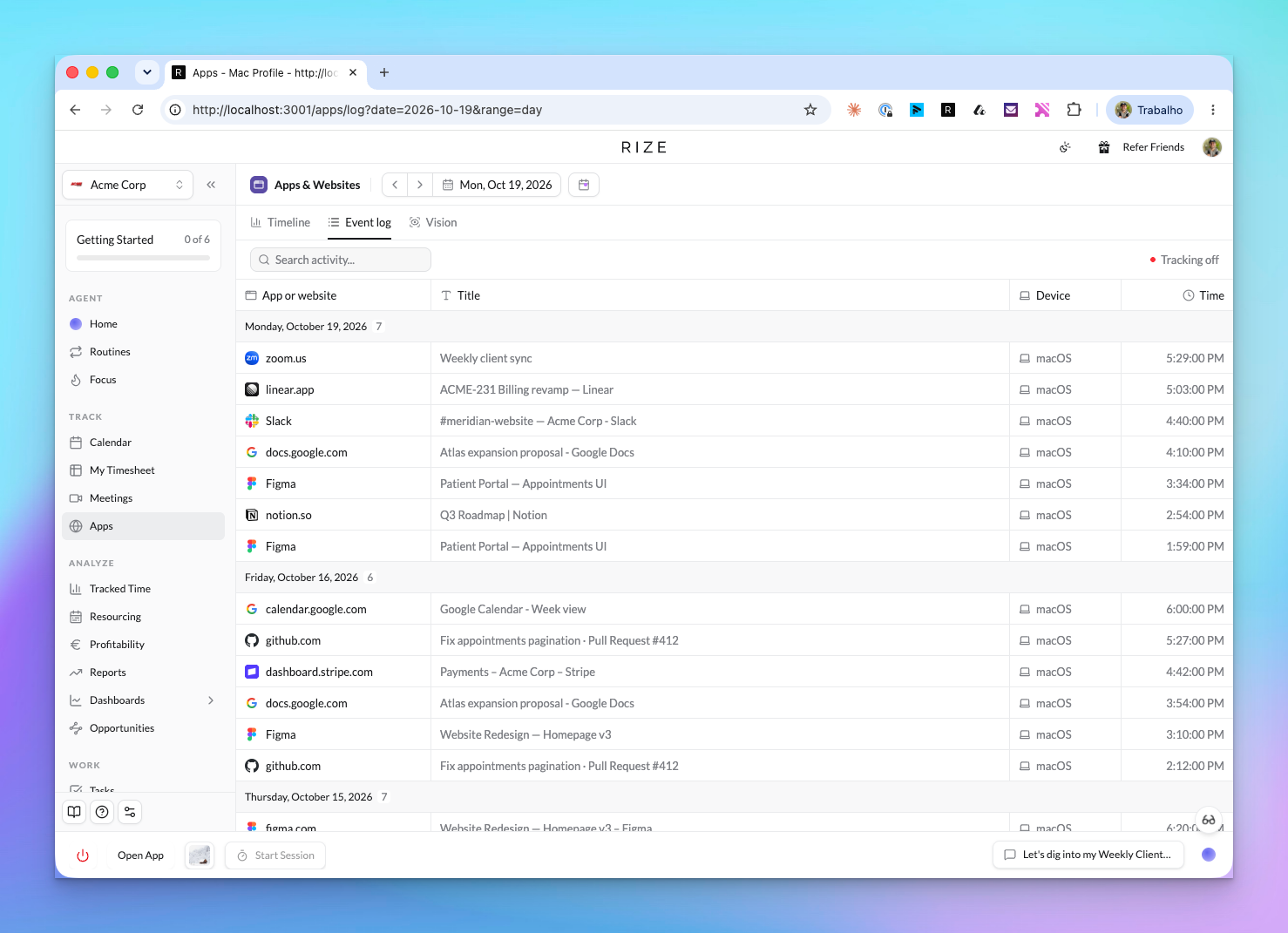
The Event log tab lists every tracking event for the period, newest first and grouped by day. Each row shows the app or website with its icon, the window title, the device it was tracked on, and the time. Use Search activity to filter by app, website, or title. Click a row to open its details.
Vision
The Vision tab shows the screen text captures Rize has saved, when you have Vision turned on. Captures use the same table as the Event log, with columns for the app or website, a summary, the device, and the time. Rows group by hour or by app, and app groups show the app icon in the group header. Click a row to open the capture and read its text.
App and website icons
Rize shows the icon of each app and website wherever it lists activity: the Calendar's Apps column and its hover tooltip, the Apps & Websites timeline and ranked list, the Event log, Vision, Settings > App & Website Rules, and the Titles, Apps, Event log, and Screen text tabs of the time entry panel.
A website Rize has not seen before shows a generic icon until its icon is fetched, usually on the next load.
An icon is a picture of a domain or app name Rize already tracks. Activity tracking still records only app name, window title, URL, and timestamps; Vision, when you turn it on, additionally saves screen text captures. See How and What Rize Tracks.
Grouped activity in the Calendar
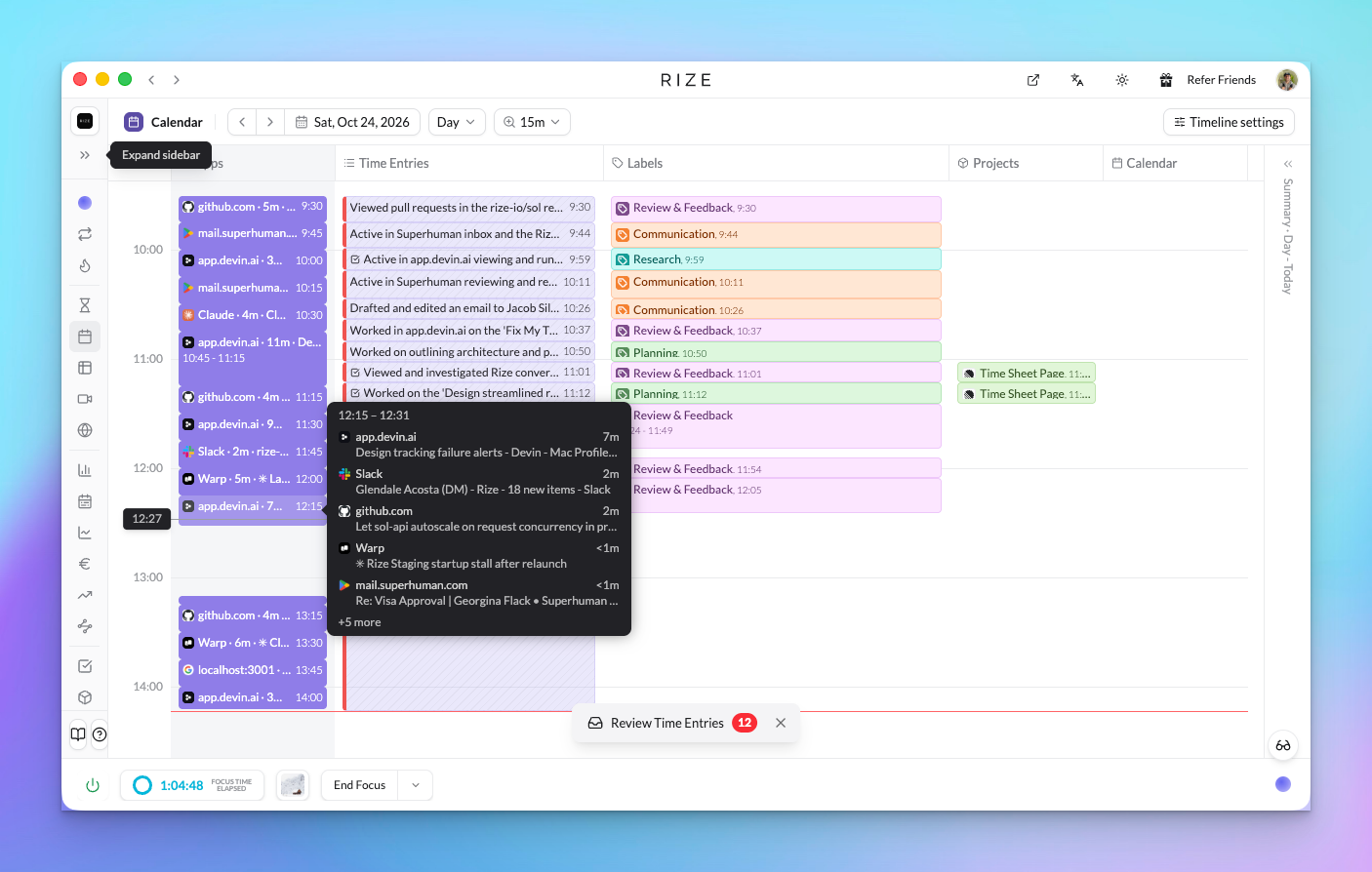
The Calendar's Apps column groups consecutive activity in the same app into one block, labelled with the icon, the app, the duration, and the window title you spent longest in. Hover a block to see its time range, the top five apps in it with their busiest title and duration, and a count of the rest. A zoom select next to the Day picker sets the slot size from 1 minute to 1 hour; Cmd + and Cmd - step through the same levels. When the column is narrow, each block shows only its icon.
View Apps on any range lists each app's total time and the titles behind it.