Using the Desktop Widget
Rize's Desktop Widget highlights your most important productivity stats as you work. The widget will appear in the top right corner of your desktop and will overlay on top of all your windows.
Desktop Widget Features
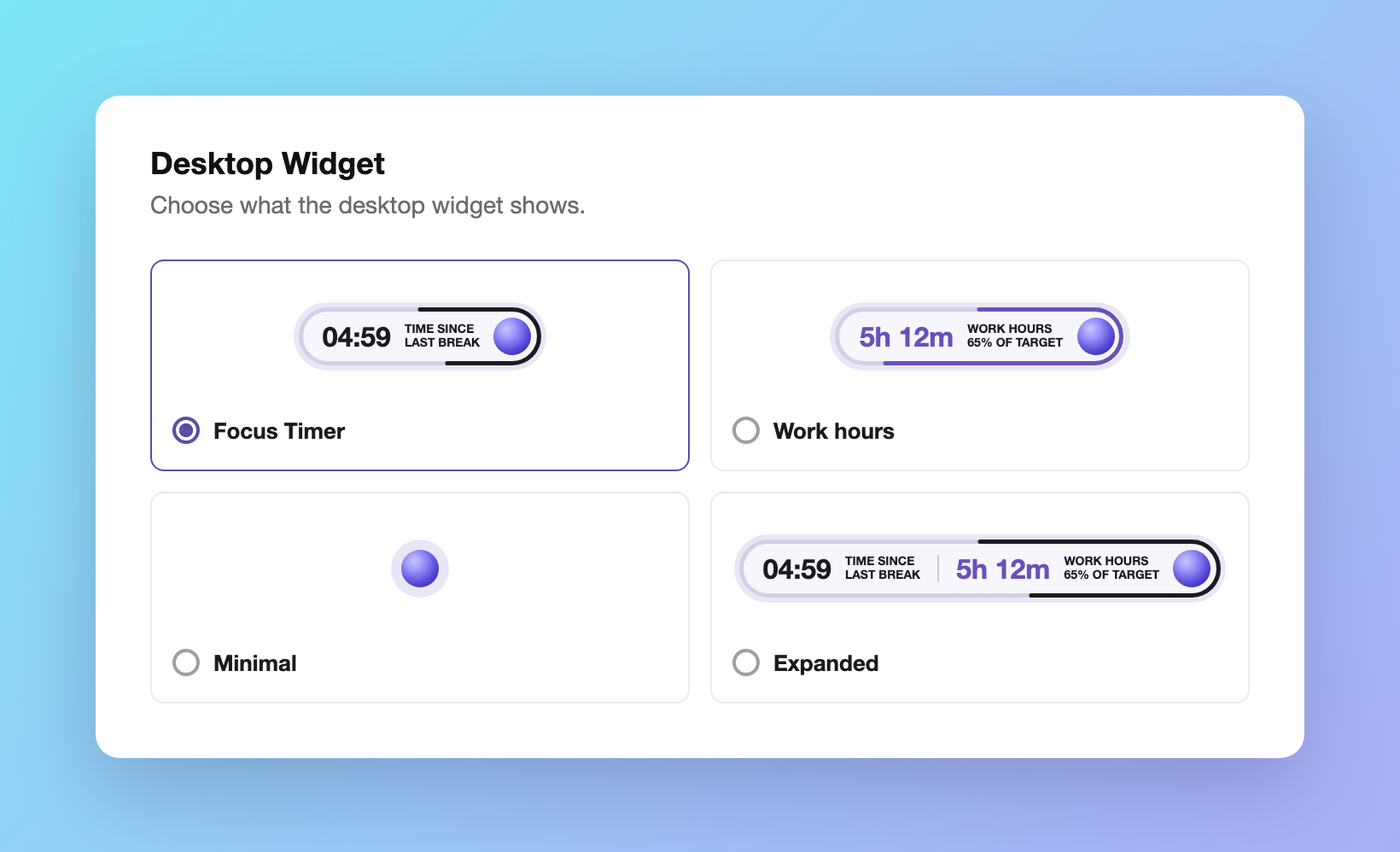
The Desktop Widget is a floating pill with the Rize orb. What the pill shows depends on the style you choose:
- Focus Timer (default) - Shows your current focus, break or meeting timer with a progress border, or the time since your last break
- Work hours - Shows today's Work Hours and your percent of your daily Work Hour target
- Minimal - Shows only the orb, with no timer or label
- Expanded - Shows the focus timer and today's Work Hours with percent of target in one pill
In the Focus Timer style, the widget shows the time since your last break. If you are in a session, it shows the amount of time that has elapsed in that session instead.
Every style shows an upcoming meeting beside the pill when it starts within ten minutes, with a Join button for the video link. Every style also shows when tracking is paused, syncing or locked.

Choosing What the Desktop Widget Shows
To change the widget style,
- Open Settings in the desktop app.
- Select "Theme".
- Under "Desktop Widget", select Focus Timer, Work hours, Minimal or Expanded.
The widget switches as soon as you pick a style. The choice is saved per device.
Desktop Widget Menu
The Desktop Widget menu provides quick access to several useful actions including:
- Showing the dashboard
- Pausing or resuming tracking
- Starting or stopping a session
- Desktop Widget display options
- Settings shortcuts

Hiding or Showing the Desktop Widget
Enabling or Disabling Auto-Hide on Mouse Hover
By default, the Desktop Widget collapses when you hover your mouse over it. To enable or disable this behavior,
- Select "Widget" from the Desktop Widget menu.
- Select the "Auto-hide on Mouse Hover" option.
Temporarily Hiding the Desktop Widget
To temporarily hide the Desktop Widget,
- Select "Widget" from the Desktop Widget menu.
- Select the "Hide Temporarily" option.
- Select a time period to temporarily hide the Desktop Widget.
Permanently Hiding the Desktop Widget
To permanently hide the Desktop Widget,
- Select "Widget" from the Desktop Widget menu.
- Uncheck the "Show on Desktop" option.
Showing the Desktop Widget
To show the Desktop Widget,
- Select "Widget" from the top left menu in the dashboard.
- Check the "Show on Desktop" option.

Repositioning the Desktop Widget
You can reposition the Desktop Widget by clicking and dragging it.
To reset its position, select "Widget" from the Desktop Widget menu, and select the "Reset Position" option.