Asana Integration
Connect Asana so tracked time lands on the task
The Asana integration syncs tasks into your Rize workspace so time is tagged against real work, and writes time tracked in Rize back to the matching Asana task. It is built for agency and operations teams that plan delivery in Asana and bill from Rize.
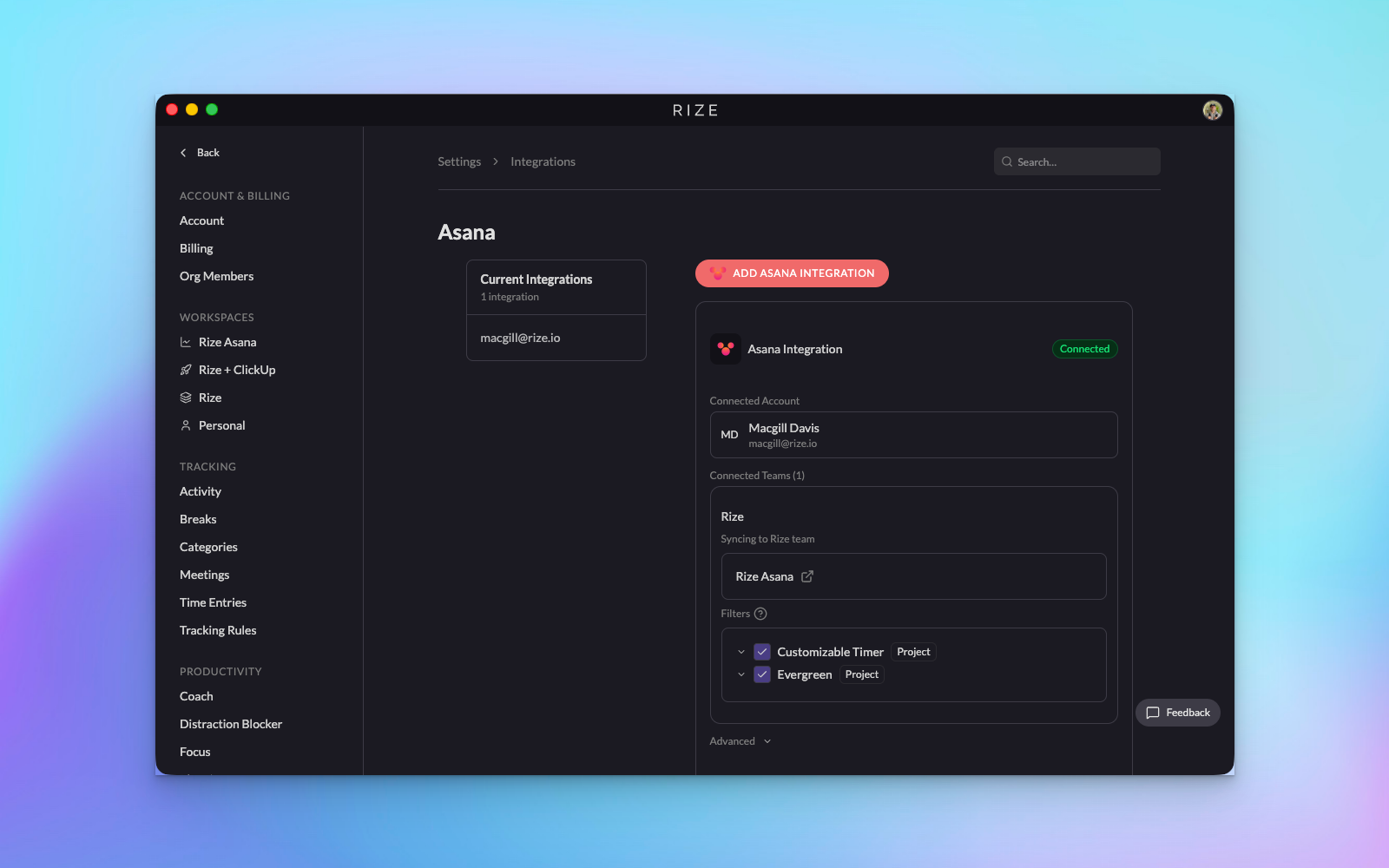
What the integration does
Sync tasks into Rize
Your Asana tasks can appear inside Rize so users can tag entries to the exact task they were working on.
Improve auto-tagging
When Rize knows the relevant Asana tasks, the AI has much better task-level context for matching suggestions.
Control scope
Choose which workspaces, projects, and team members should participate in the sync so the dataset stays clean.
Time entries written to Asana
Each Rize time entry tagged to an Asana task becomes a time tracking entry on that task, and stays in sync when the entry changes.
Time entry sync
When Rize tags a tracked time entry to an Asana task, it creates a time tracking entry on that task in Asana with the entry's duration and date. Editing the entry in Rize updates it in Asana. Deleting it, or moving it to a different Asana task, removes the old entry and creates the new one.
Two-way time entry sync is on by default for every connected workspace. Turn it off from the Asana integration settings if you want task sync only.
The Asana integration is available on the Professional plan and above.
How to connect Asana
Open Settings > Integrations
Start from the Integrations area in Rize and choose Asana.
Authorize the connection
Rize will redirect you to Asana for authentication and then return you to the app.
Choose what to sync
Select the relevant workspaces, projects, and team members you want Rize to sync against.
Review imported tasks and start training the system
Once tasks appear in Rize, use inbox review and rules to refine how suggestions map work to those tasks.
When to use Asana with Rize
- Your team already uses Asana as the source of truth for delivery work.
- You want less manual task creation inside Rize.
- You want hours on the Asana task for client reporting and billing without logging them by hand.
- You are trying to improve AI tagging quality for team-managed work.
Connect Asana before asking your team to rely on task-level auto-tagging. The AI performs better when the relevant task structure already exists in the workspace.