Assigning Time to Projects
Rize offers multiple ways to assign time to your projects, simplifying how you track work for specific projects.
Manually Assigning Time
You can manually assign time to projects using Activities or Entries from the Home tab.
Assigning Time Using Activities
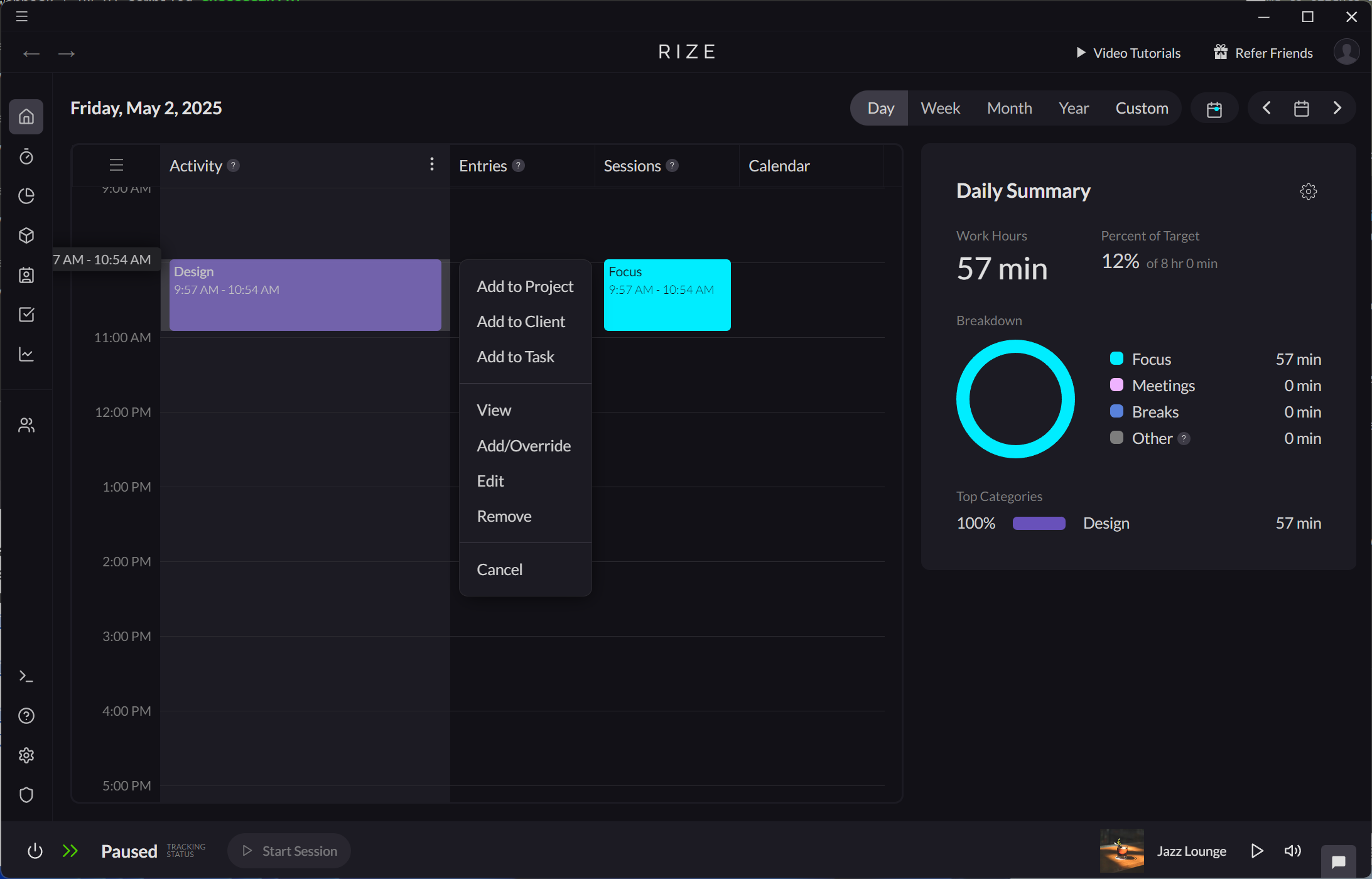
- Select an existing activity on the Activity timeline.
- Select "Add to Project."
- After selecting a project and saving, the time spent on the activity will be included in that project.
Assigning Time Using Entries
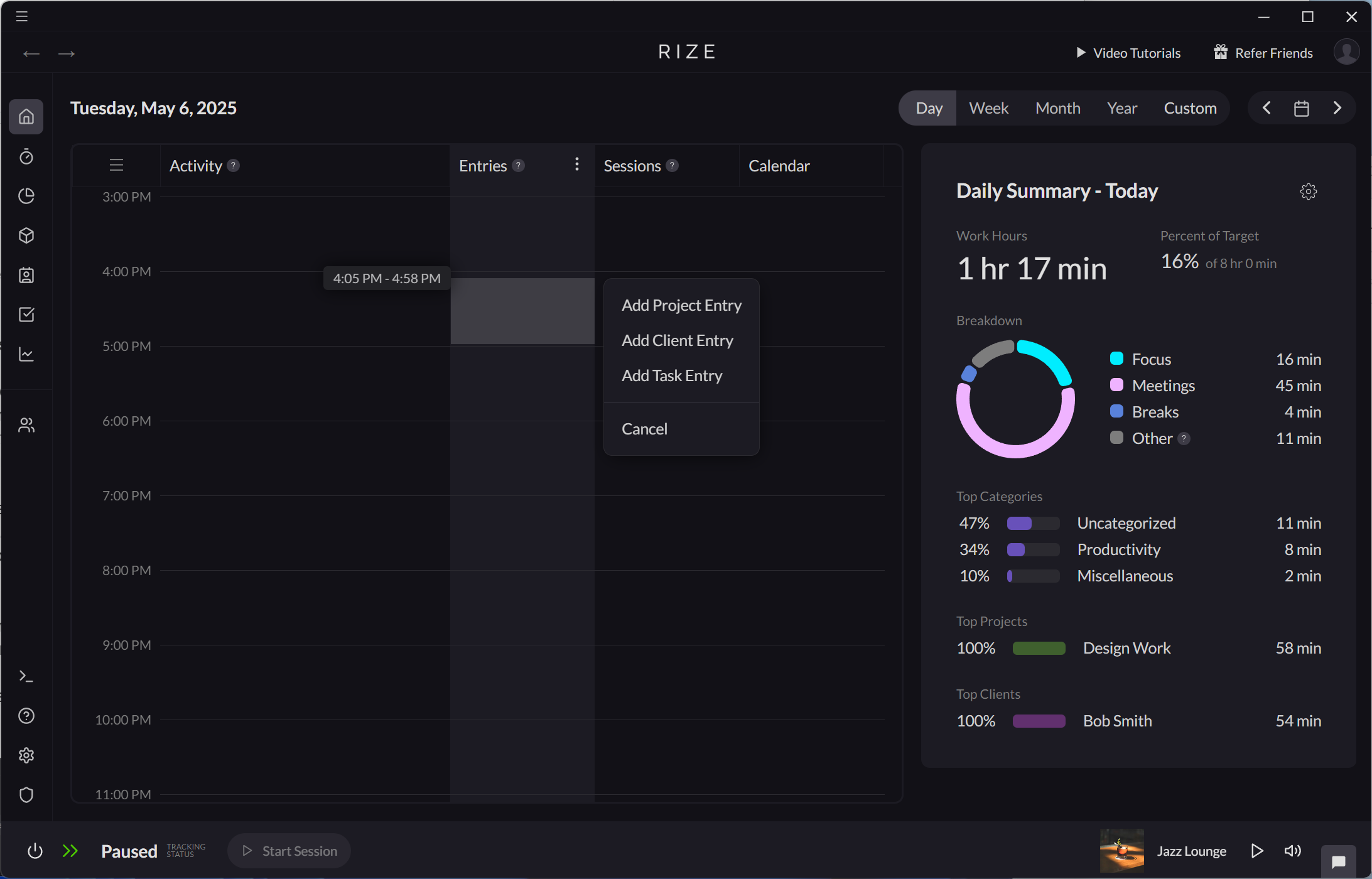
- Drag and drop on the Entry timeline.
- Select "Add Project Entry."
- After selecting a project and saving, the time spent on the entry will be included in that project.
Automatic Assignment Using Tasks
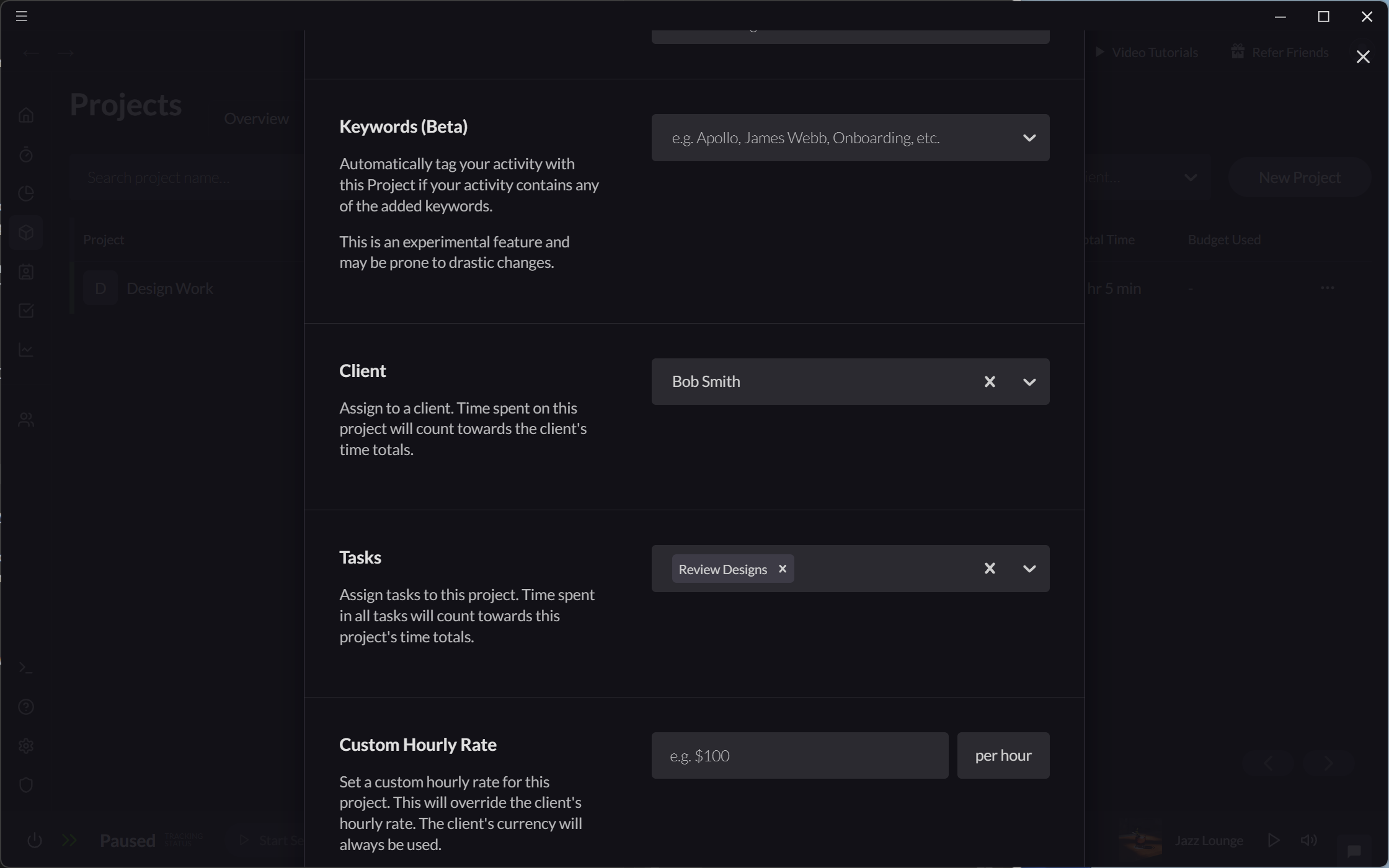
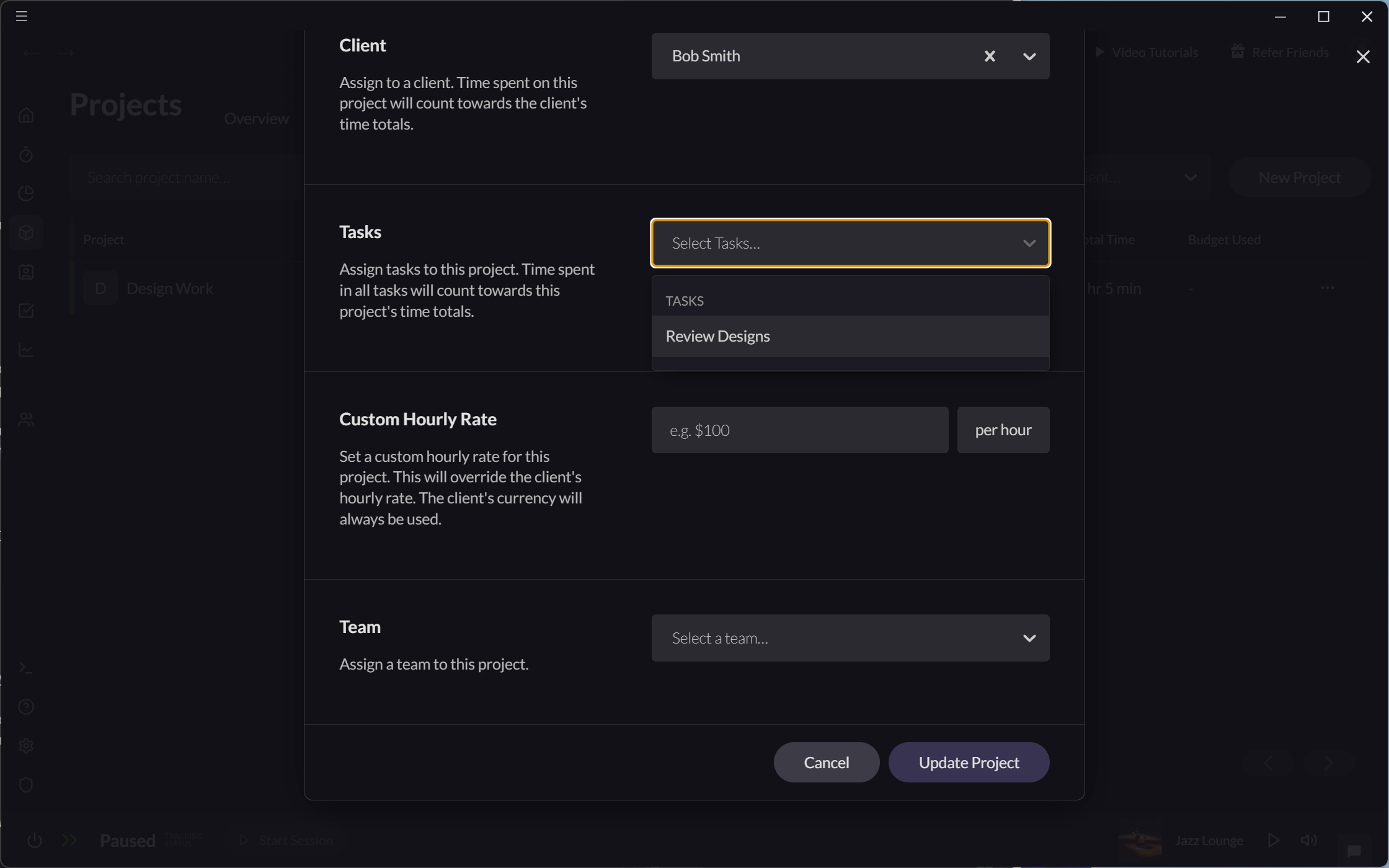
Projects can be associated with specific tasks from the "Edit Projects" modal. Once tasks have been associated with a project, the time spent on those tasks will also count towards the project's time totals.
- From Projects > All Projects, use the "Edit" action from the Project table.
- Select tasks to assign to the project from the "Select Tasks" dropdown.
AI-Powered Suggestions
Rize automatically suggests Projects for every Time Entry using advanced AI. The system learns from your work patterns and improves over time, making suggestions more accurate as you use Rize.
When creating or editing a time entry, Rize will automatically suggest relevant projects based on:
- Your recent work patterns
- Keywords associated with projects
- Your historical time tracking data
You can accept these suggestions with a single click, or manually select a different project.
You can add keywords to teach Rize's AI how to recognize your work automatically. Add keywords in the "Edit Project" modal to improve suggestion accuracy.
Automatic Assignment Using Keywords
Rize can automatically assign time to projects based on keywords.
- Add keywords for each project in their "Edit Project" modal.
- When you log time with these keywords, it will be assigned automatically to the corresponding project.