ClickUp Integrations in Rize
Connect ClickUp so Rize can tag work against real tasks
For many agency teams, ClickUp is the highest-value integration because it gives Rize a live task graph to match against. That improves auto-tagging quality and lets tracked time flow back into ClickUp automatically.
Connecting ClickUp
Click the "Connect ClickUp" button in Settings > Integrations. You will need to log in to ClickUp and authorize the integration.
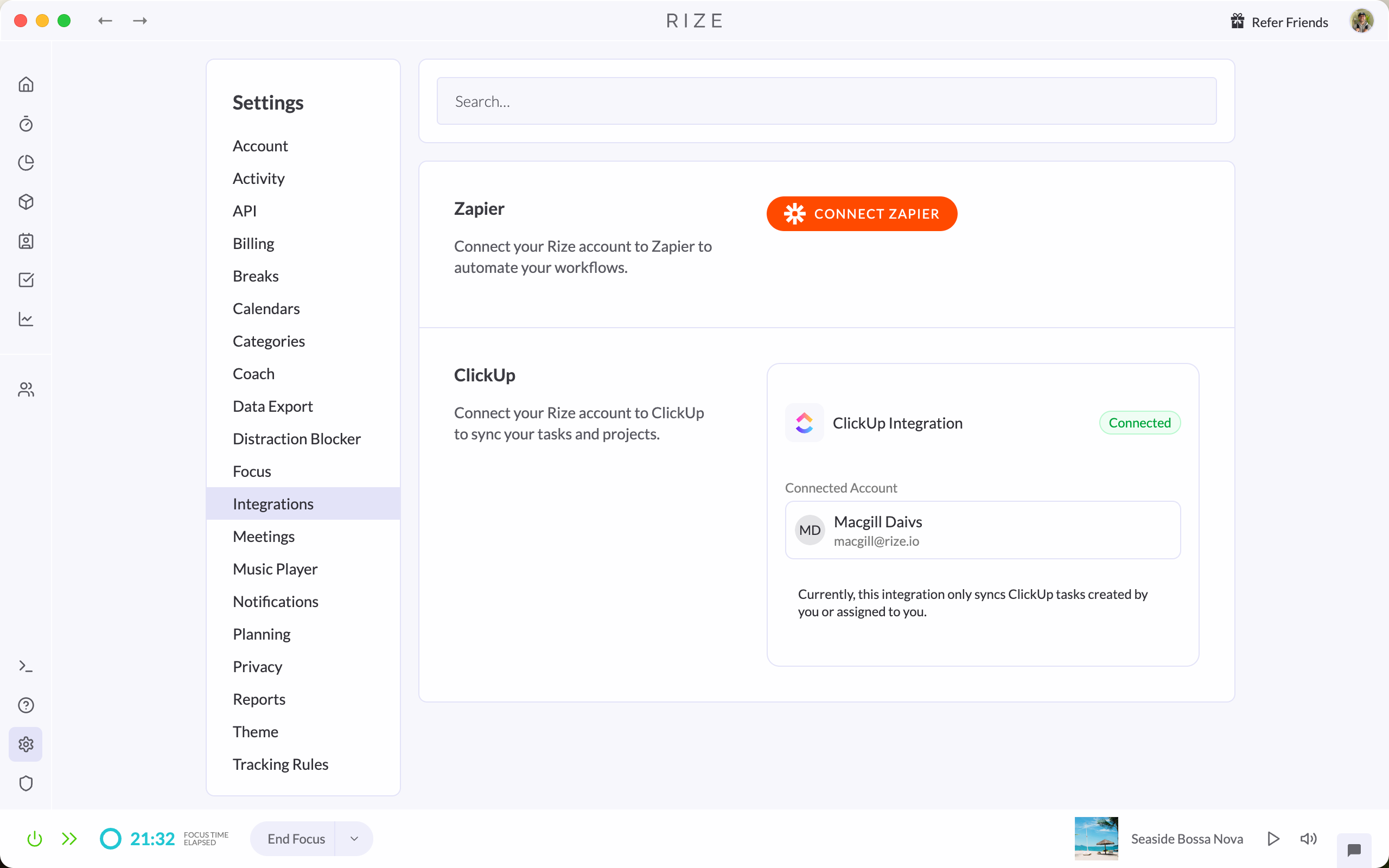
Rize now supports connecting multiple ClickUp accounts. You can connect multiple ClickUp workspaces to sync tasks from different accounts simultaneously.
Selecting Workspaces
Choose which ClickUp workspace you want to sync with Rize. You can connect one or multiple workspaces.
Viewing Synced Tasks in Rize
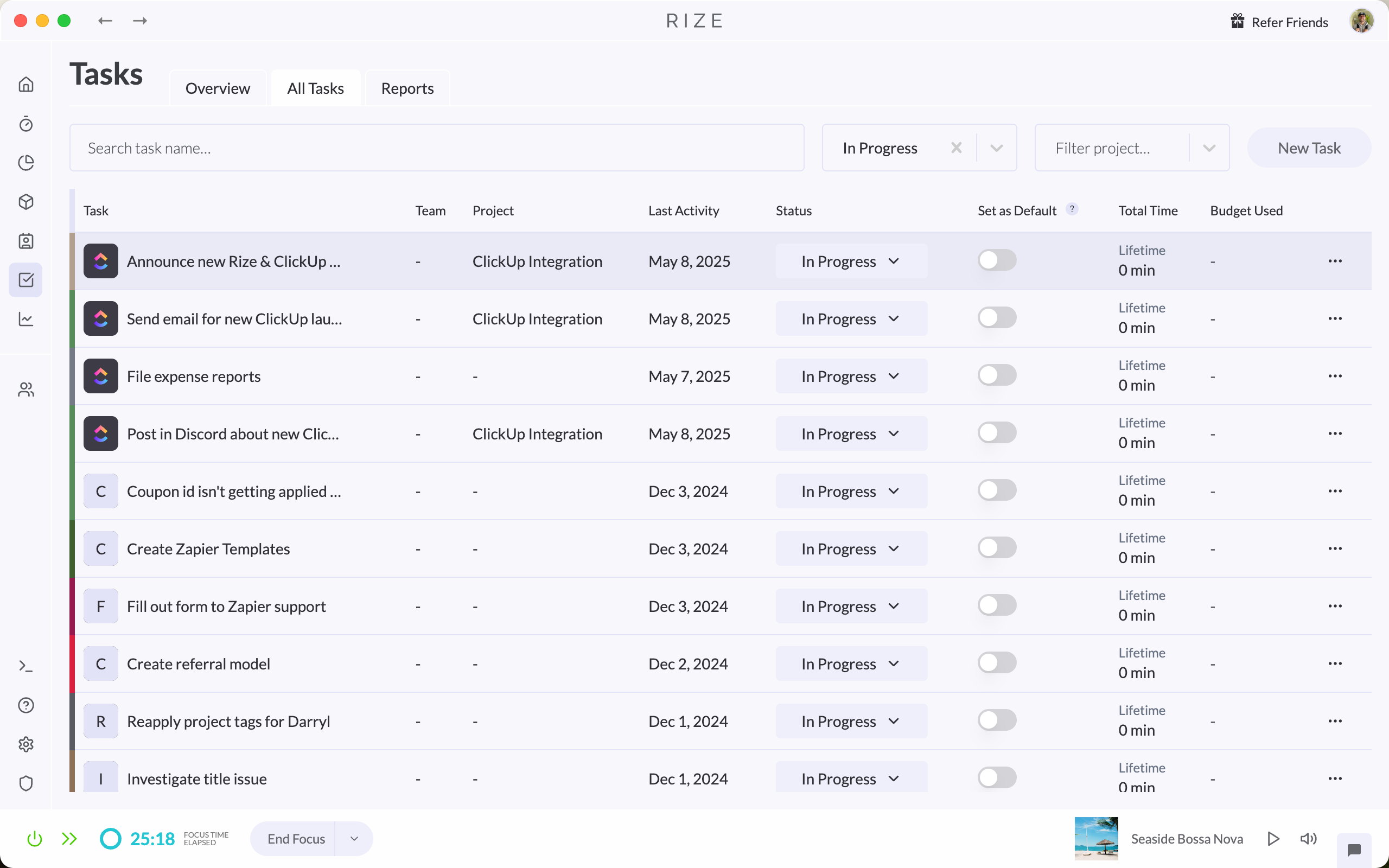
Once connected, you can view your ClickUp tasks in Tasks > All Tasks. Synced tasks will be marked with a ClickUp icon next it.
By default, Rize syncs tasks created by you or assigned to you. If you want to include tasks owned by other workspace members, enable the Sync non-member tasks option in Settings > Integrations > ClickUp > Advanced.
Why this helps auto-tagging
Better task matches
Rize can match work against real task names and synced project structure instead of guessing from raw activity alone.
Faster review
If suggestions are already pointing at real ClickUp tasks, users have less cleanup to do in the inbox.
Cleaner reporting
Better tagging upstream leads to better client, project, task, and profitability reporting downstream.
Webhook Architecture
Rize now uses a single shared webhook per ClickUp workspace. Events from that webhook are automatically fanned out to every connected Rize team. This eliminates duplicate webhooks, prevents routing drift after re-authorization, and ensures that new tasks and updates are picked up reliably across all teams linked to the same ClickUp workspace.
Keeping Tasks Updated
You cannot edit ClickUp task names directly in Rize, but any changes made in ClickUp will sync back into Rize automatically.
Tracking Time Against ClickUp Tasks
You can track time against synced ClickUp Tasks as you would with Rize Tasks. ClickUp Tasks will appear in the selection dropdown when adding Tasks in Rize.
Learn more about tracking time spent on Tasks at Assigning Time to Tasks.
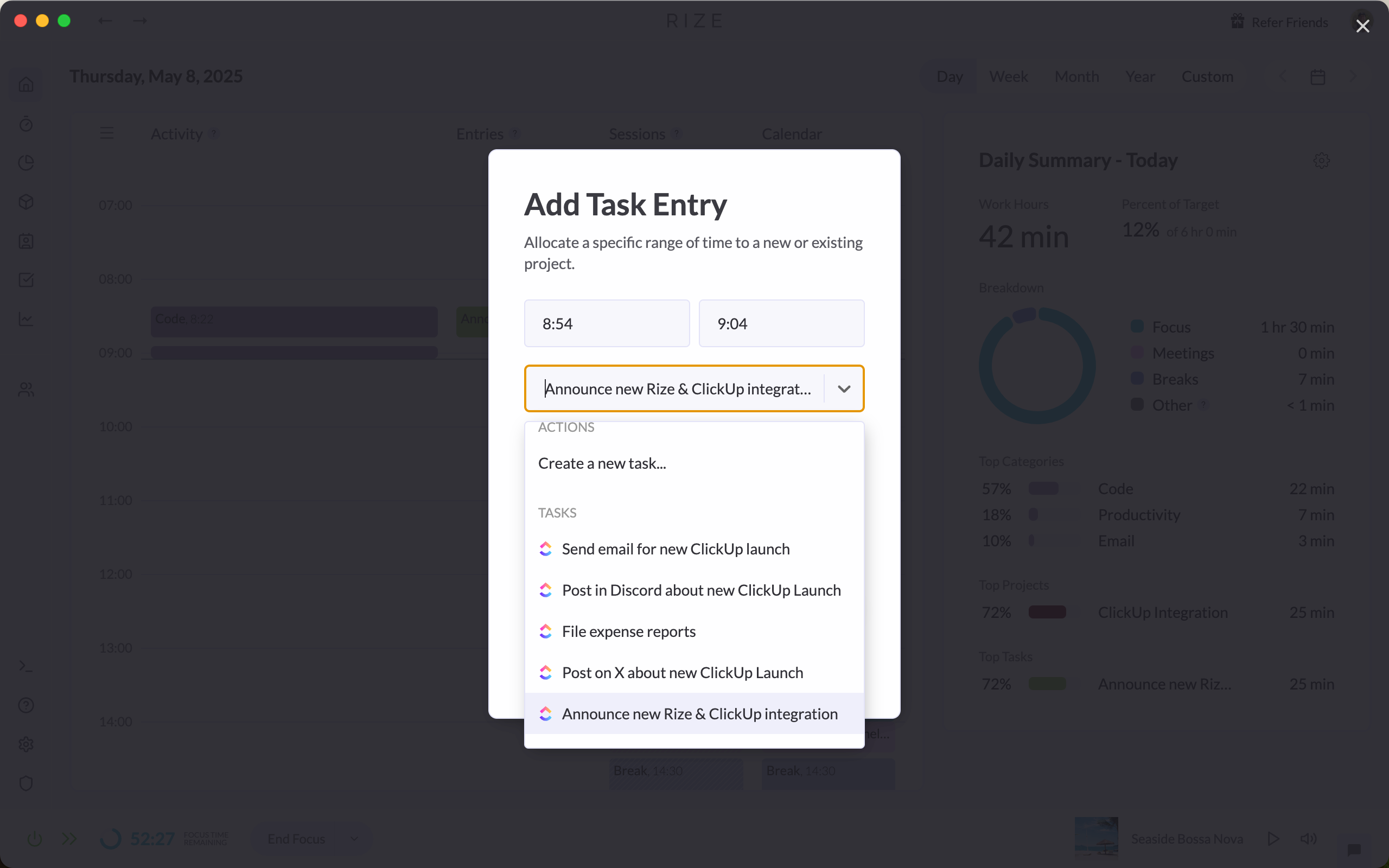
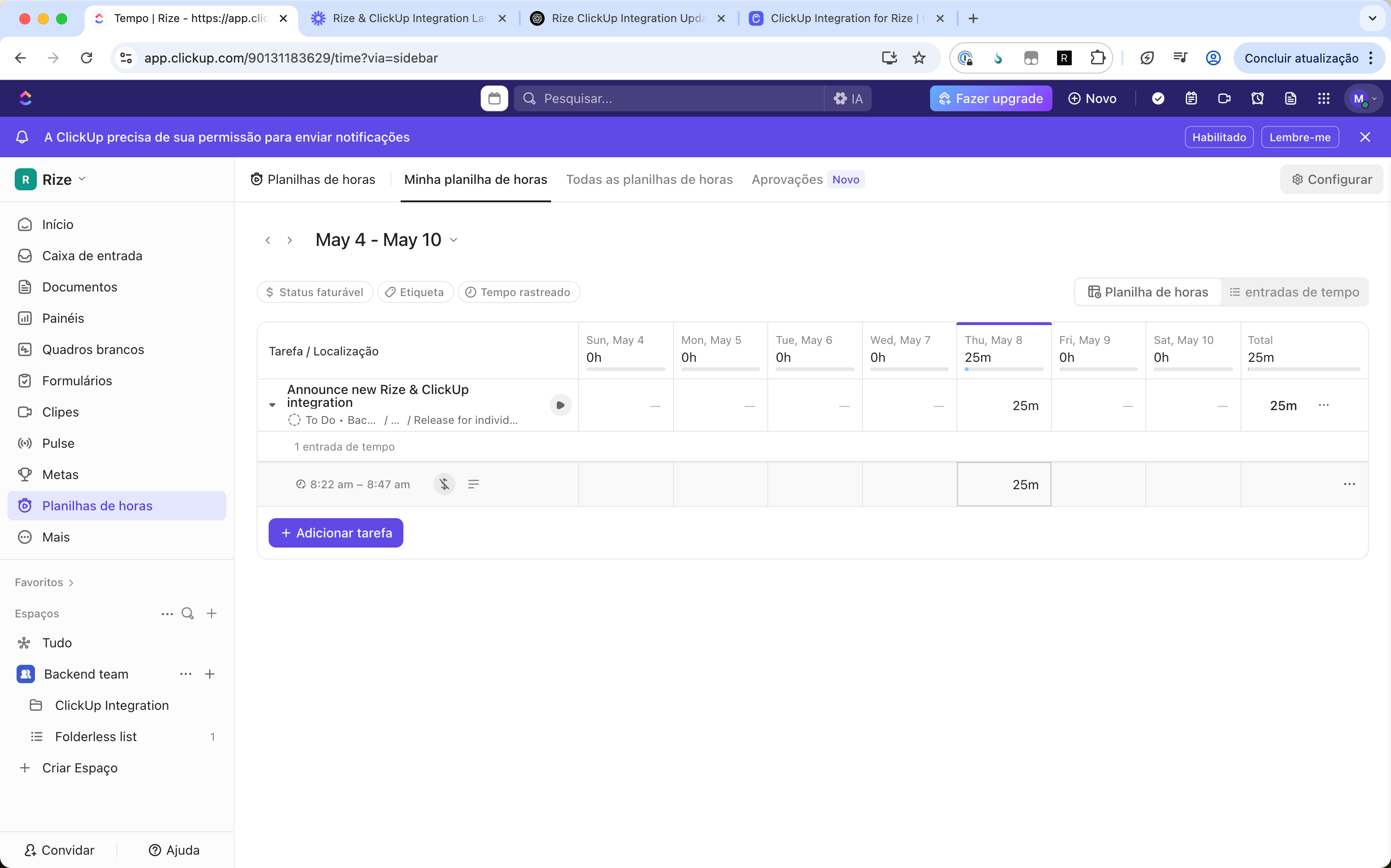
Any time you track against a ClickUp task in Rize will automatically sync back to your ClickUp workspace as a logged time entry on that task, visible in your ClickUp timesheets and reports. Time is attributed to your ClickUp identity — even on multi-assignee tasks, Rize looks up your ClickUp workspace identity first so time is logged under the correct user.
Creating a Team from ClickUp
Rize's ClickUp integration allows you to import your team members and their tasks from ClickUp.
Click "+Add Team" under the Teams navigation item and select the "Create via ClickUp" option. You will be redirected to ClickUp to authorize the connection and select the ClickUp Workspace that you want to sync. Once selected, you will be returned to Rize, where you can see your connected ClickUp account.
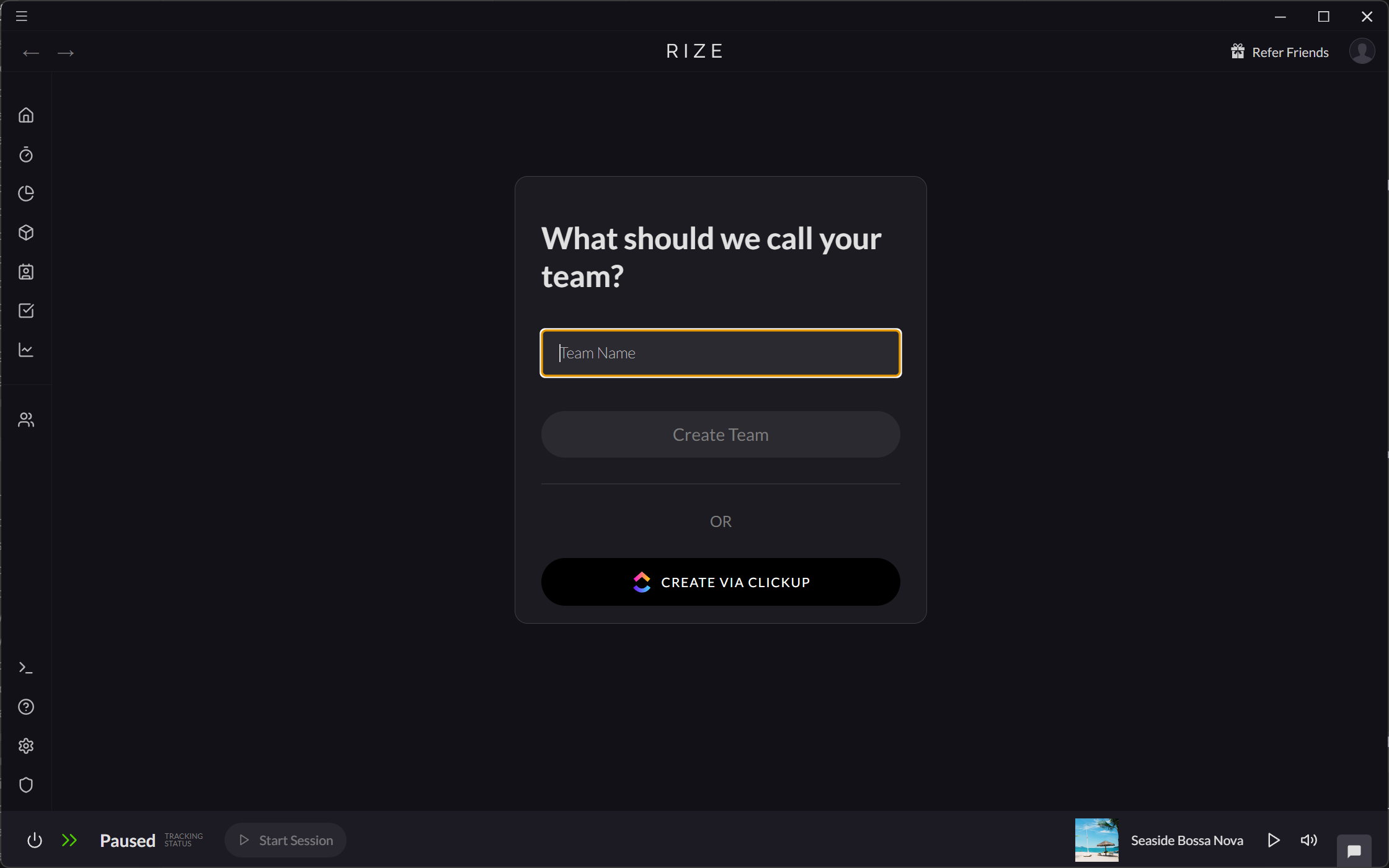
After connecting your ClickUp account, you can choose to add your team members to an existing Rize team or a new team named after your workspace. You can then select the members of your ClickUp team that you want to add to your Rize team.
Syncing Team Tasks from ClickUp
Once you have selected the team members, you can choose to sync your ClickUp folders as Rize projects. Selecting this option will automatically sync your team's ClickUp tasks with Rize. When your team members log time to these tasks in Rize, the time entries are synced back to ClickUp.
Recommended rollout
Connect ClickUp before broad team rollout
This gives Rize better task context immediately and reduces the need for manual task creation inside the workspace.
Review sync scope carefully
Only bring in the workspaces, folders, or team members that should really participate in tracked time and reporting.
Use inbox review to catch mismatches
Watch the first few days closely so you can add rules and keywords where ClickUp task names alone are not enough.
Other Integrations
Rize also integrates with Linear, Asana, and Zapier for connecting to the rest of your stack.