Setting Work Hours
Rize allows you to track your Work Hours, helping you understand the amount of time you are productive each day.
Work Hours Calculation
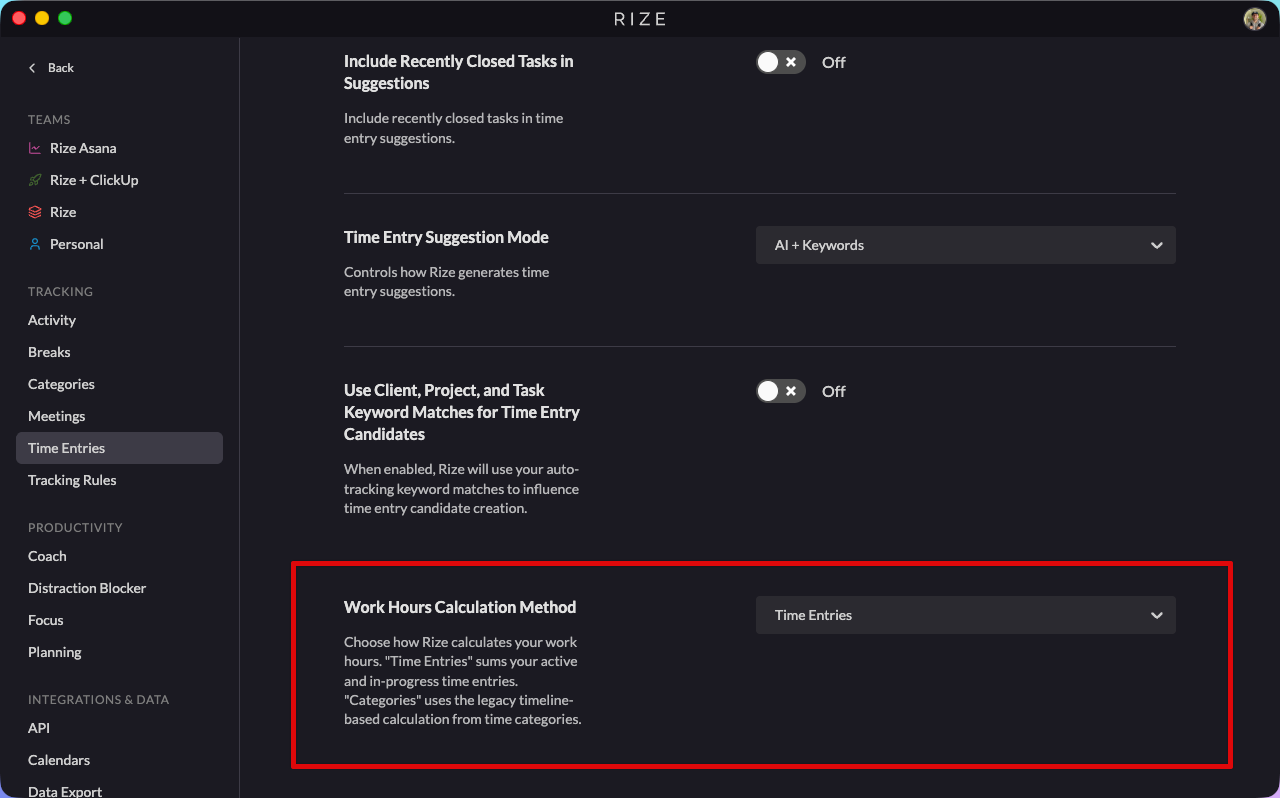
By default, Rize now calculates your Work Hours based on your approved and pending time entries. This is simpler, more accurate for multi-team users, and it naturally excludes break time.
Hover the Work Hours bar on the calendar and you'll see a team-color breakdown — so you can tell at a glance how today's hours split across teams.
Head to Settings → Time Entries to find the Work Hours Calculation Method dropdown with two options:
- Time Entries (the new default): Work Hours is calculated from your approved and pending time entries. Clean, simple, and tied exactly to the work you actually logged.
- Categories (deprecated, still supported): The original calculation. Sums time spent in focus, meeting, and break blocks plus time in work categories.
The category-based calculation is still fully supported. Switch to Categories in Settings → Time Entries and nothing else changes.
Setting Target Work Hours
You can set a target number of hours to work each day. When you reach your target, Rize will send you a notification.
Setting Target Work Hours by Day of Week
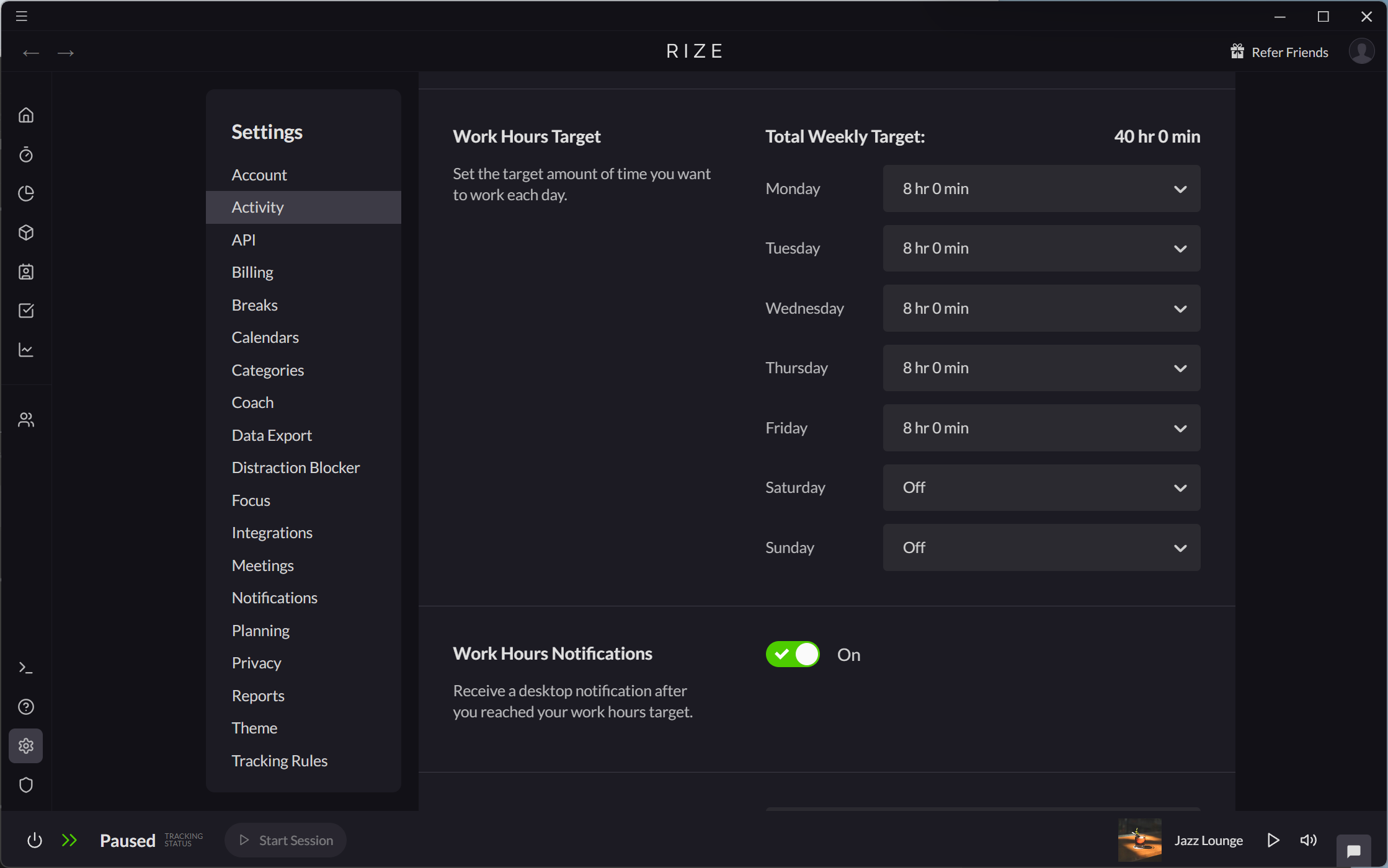
The default target is 8 Work Hours Monday through Friday. You can customize the target for any day of the week with the Work Hours Target setting in Settings > Activity.
Updating the Work Hours Target setting will only be applied going forward. For past work days, Rize will use the Work Hours target that was set at that time.
Updating Target Work Hours for a Specific Day
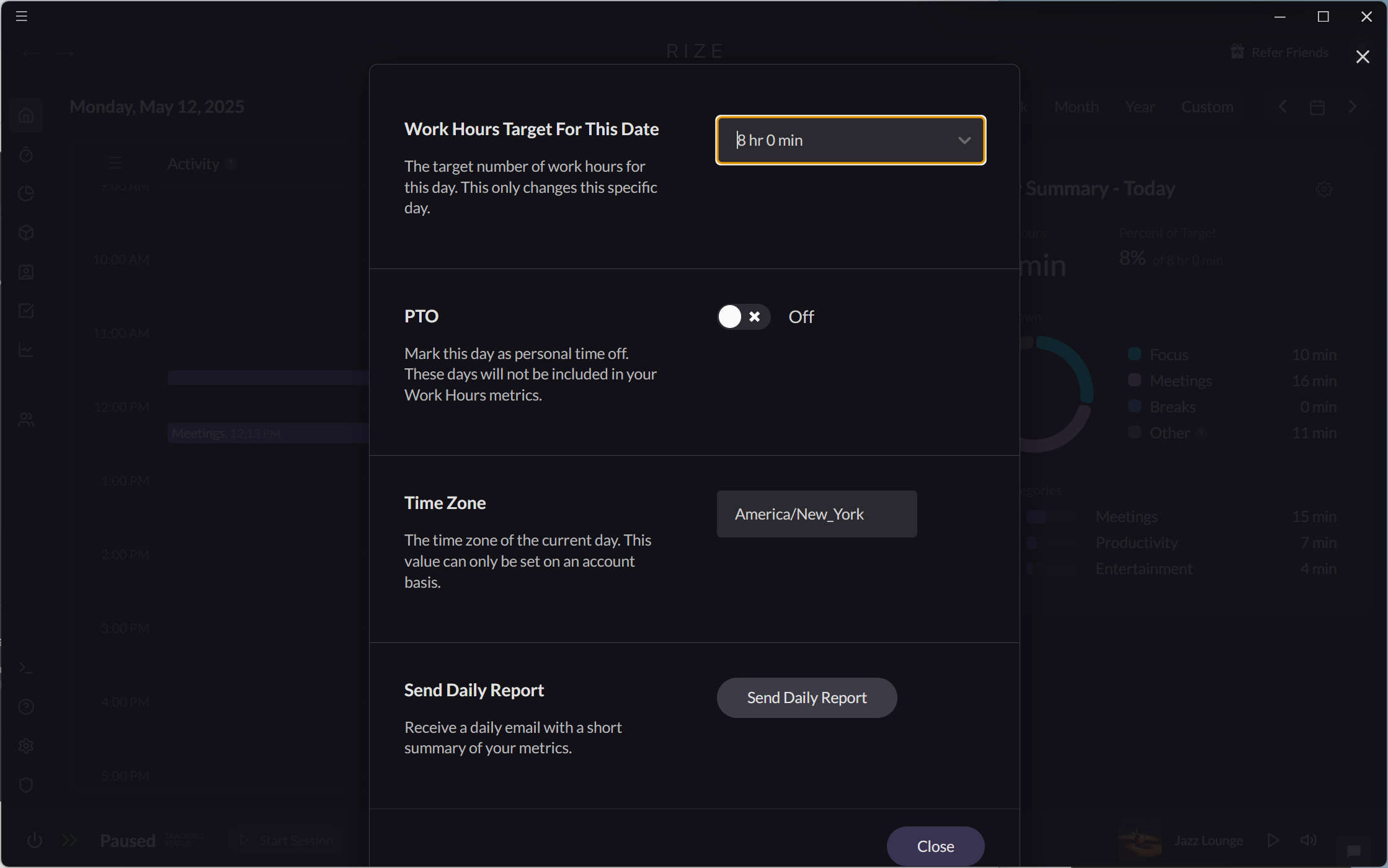
You can also update the Work Hours Target for a specific day.
- Select the date you want to adjust on the Home Tab.
- Click the cog icon in the Daily Summary section.
- Select the target value from the dropdown in the Work Hours Target For This Date option.
Marking Days as PTO
You can mark days as PTO in Rise. PTO days are not counted towards your Work Hours daily averages.
Manually Marking a Specific Day as PTO
- Select the date you want to mark as PTO on the Home Tab.
- Click the cog icon in the Daily Summary section of the Home Tab.
- Mark the day as PTO with the PTO toggle.
Automatically Marking Days as PTO
A day will automatically be marked as PTO if any calendar events on that day contain "PTO" or "OOO" in their title.
Excluding Time from Work Hours
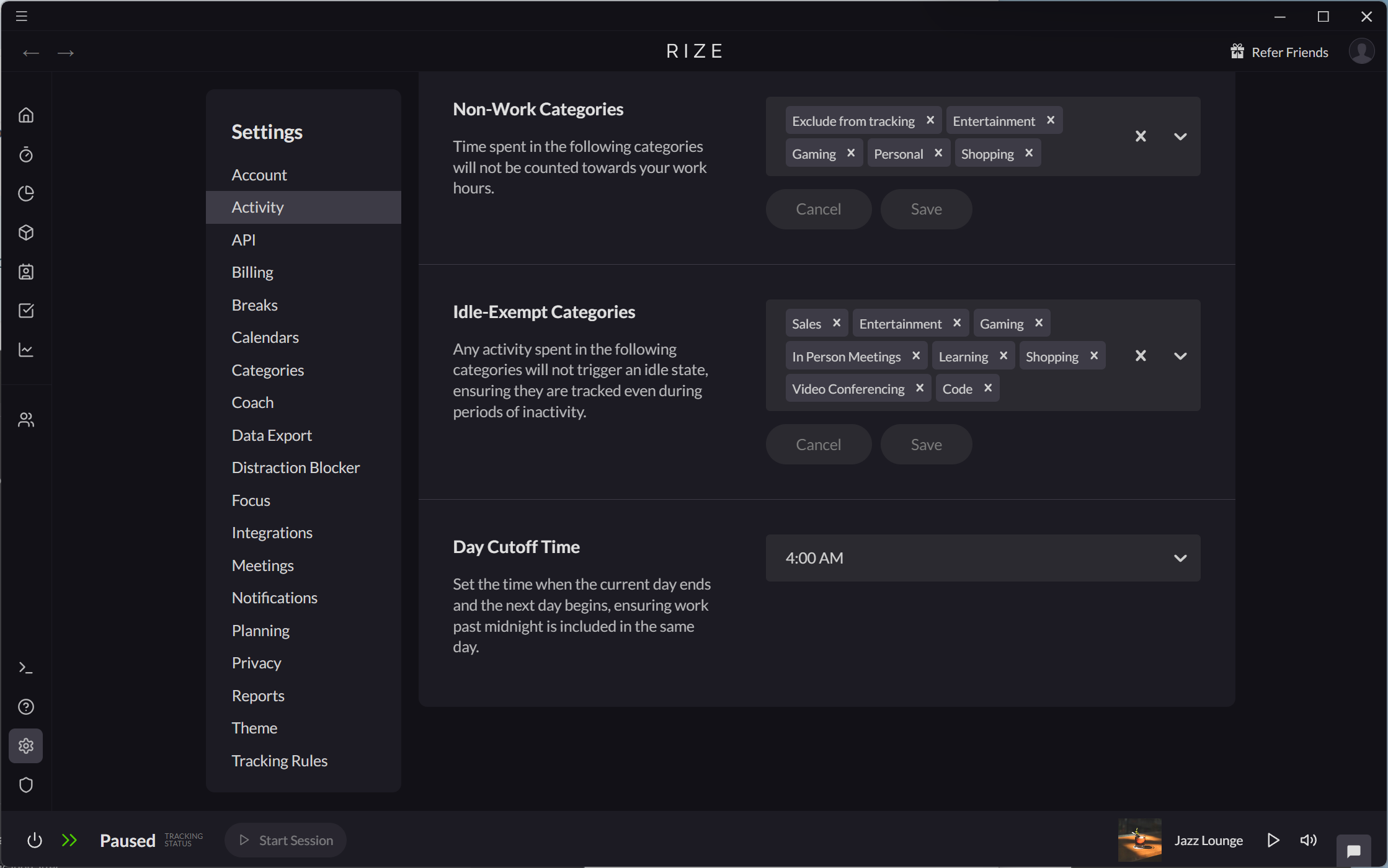
When using the Work Categories calculation method, activity in Non-Work Categories is not included toward Work Hours. Non-Work Categories can be customized from the Non-Work Categories setting in Settings > Activity.
When using the Time Entries calculation method, approved and pending time entries count toward Work Hours. Rejected entries are excluded.
By default, Exclude from tracking, Entertainment, Gaming, Personal, and Shopping are set as Non-Work Categories.