Suggestion Review Panel
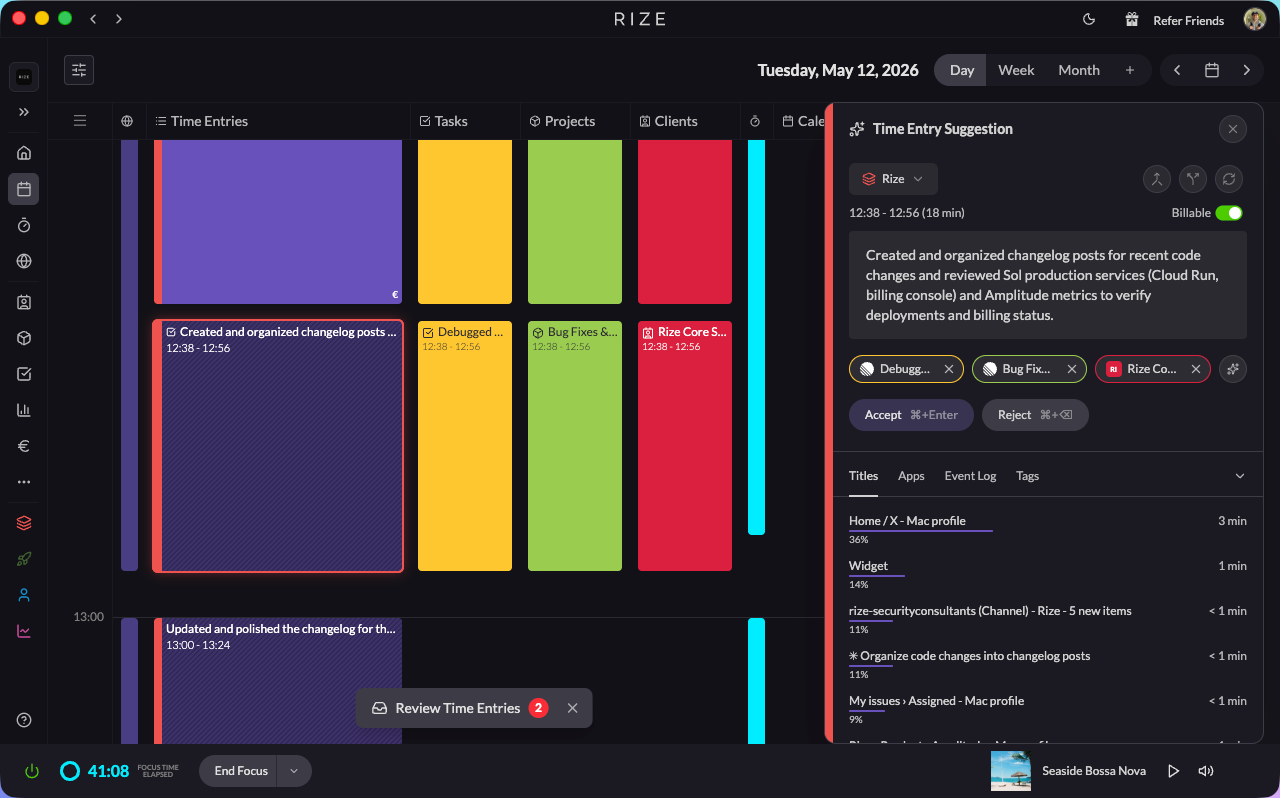
The Suggestion Review Panel is a slide-out panel that docks to the day calendar so you can step through pending time entry suggestions, approve, edit, and see full activity context without leaving the calendar view.
The Review Panel replaces the previous Time Entry Inbox. Instead of a separate inbox view, you now click any time entry on your calendar and a panel slides out alongside it.
Video Walkthrough
Opening the Review Panel
Click any pending time entry on your day calendar. The calendar zooms in and the Review Panel slides in on the right, showing the full details for that entry. Each entry shows the team color it belongs to — your default team from timeline settings, easily changed in the panel.
Hover the events on the left to see specific activity for any moment in the day. You'll see the same event timeline inside the panel for the entry you're reviewing.
Hit Accept on a suggestion and Rize moves you straight to the next pending entry. Click X to exit and the calendar zooms back to your regular view.
What You See in the Panel
The Review Panel gives you everything you need to review a time entry in one place:
- Time range and description: Edit the time range and description right in the form. (The title field has been removed to keep things simpler — the description is the primary label.)
- Team: Change the workspace the entry belongs to. Each entry displays its team color on the left edge.
- Billable toggle: Mark the entry as billable or non-billable directly.
- Tag suggestions with confidence: AI-recommended Client, Project, and Task tags appear with a confidence score. Accept or dismiss in one click.
- New task suggestions: When Rize detects work that doesn't match an existing task, it suggests creating a new one.
- Manual tagging: Tasks, projects, and clients can still be added manually. Generate new suggestions on demand.
- Quick actions: Merge, split, or regenerate the entry from the panel.
Tag Recommendations
The panel shows tag recommendations from the AI across all your teams. Each recommendation appears as a pill you can accept with one click.
- Hover a tag pill to see the reasoning behind the recommendation.
- Clear recommendations you don't want.
- Add new suggestions: Click the add button to generate a new client, project, or task suggestion directly from the panel.
Creating Entities from the Panel
You can create new tasks, projects, or clients without leaving the review flow:
- Click the add button next to the tag type you want to create.
- A creation modal opens where you can create the entity in Rize, Linear, ClickUp, or Jira — without leaving the review panel.
- The new entity is immediately available for tagging.
Context Tabs
The bottom of the panel includes context tabs that show supporting information for the time entry:
- Titles: Window titles captured during the time block.
- Apps: Which applications you used during that time block.
- Event Log: A detailed chronological log of individual tracking events.
- Tags: All tags recommended across different teams, with the ability to clear or accept them individually.
This context helps you verify that the AI suggestions are accurate and make corrections when needed.
Quick Actions
The panel includes quick actions for managing time entries:
- Merge: Combine adjacent time entries into a single entry.
- Split: Divide a time entry into smaller segments.
- Regenerate: Ask the AI to re-analyze and suggest new tags for an entry.
Keyboard Shortcuts
Speed up your review process with keyboard shortcuts:
- Use keyboard shortcuts for fast tagging and navigation.
- Quickly accept, reject, or modify entries without using the mouse.
- Navigate between entries with arrow keys.
The Review Panel learns from your work patterns and improves over time. The more you use it, the more accurate the suggestions become.
Benefits
- Speed: Review your entire day without leaving the calendar. Hit accept and move to the next entry instantly.
- Context: Full activity context (titles, apps, events, tags) helps you verify and correct entries.
- Confidence scores: See how certain the AI is about each tag suggestion before accepting.
- One-click tagging: Accept AI suggestions or create new entities directly from the panel.
- Cross-tool task creation: Create tasks in Rize, Linear, ClickUp, or Jira from the same form.
- Learning: The system improves suggestions based on your corrections and work patterns.