How and What Rize Tracks
Rize tracks metadata, not the contents of your work
Rize is designed to automate time capture without screenshots, keylogging, or invasive monitoring. This page is the one to share with teammates when they ask what the product actually sees.
What Rize tracks
Rize automatically tracks the metadata about the active window on your computer. No matter how many monitors you have, at any given moment there can only be one active window. From this window Rize tracks the following data as tracking events:
- App name
- Window title
- URL (if present)
- Timestamps
Rize will then automatically categorize your time based on your custom tracking rules. If you head to Categories > Activity Log you can view your events and their categories.

Rize does not take screenshots, record keystrokes, read the contents of documents, or inspect the text inside the apps you are using. It is designed to answer “what kind of work happened and when?” rather than to monitor behavior.
Rize never tracks any content within the window - only the metadata listed above. You can fully customize what data is tracked and how long it's retained in Settings > Privacy.
Live Background Tracking
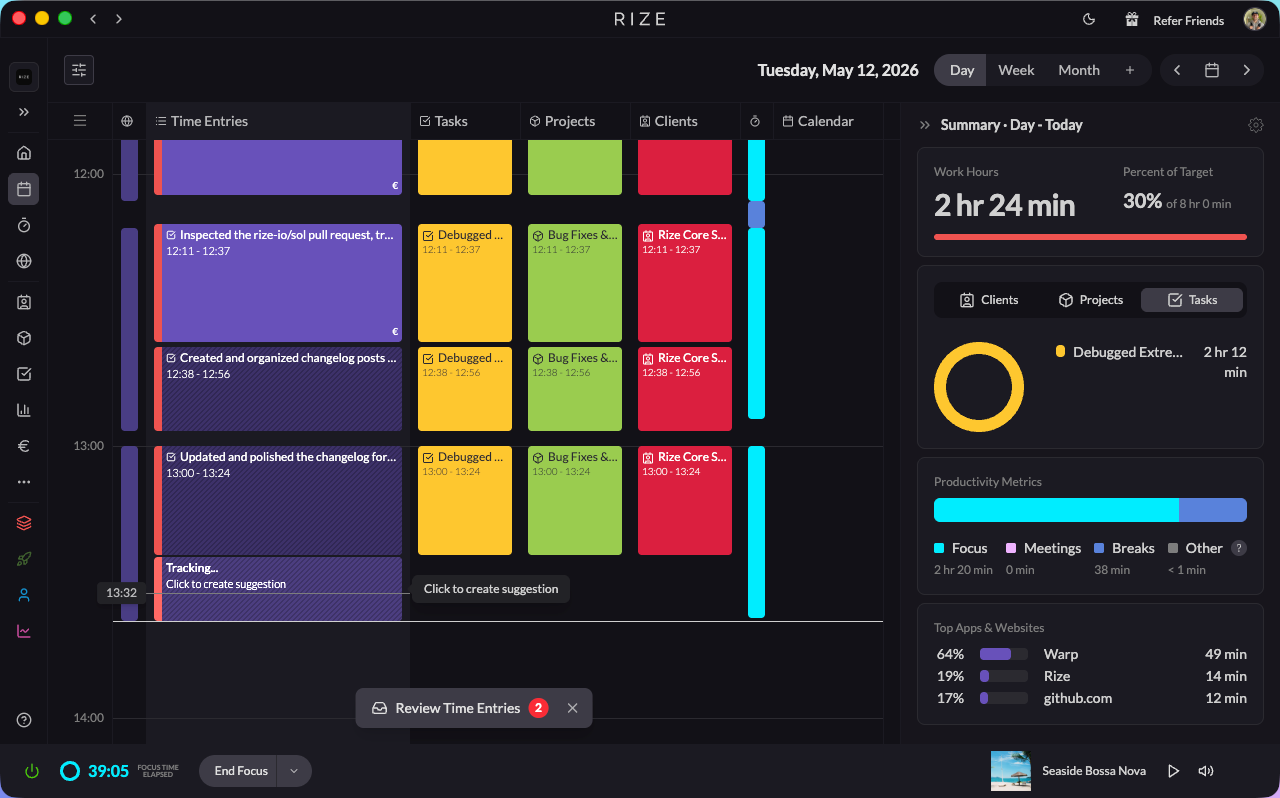
Instead of batch-creating suggestions after the fact, Rize now creates a tracking time entry on your calendar in real time as you work. Because entries are processed live, you get better suggestions and more accurate client, project, and task matches.
- Live tracking entry: A new entry appears on your calendar the moment you start working.
- Click to finalize on demand: Click the tracking entry and it processes immediately — segmenting splits it into smaller entries if needed, then generating creates the description and tag suggestions for each one.
- Team color on every entry: Every time entry shows the team color on its left edge, so multi-team users can see at a glance which team an entry belongs to.
- Live activity blocks: Hover the activity blocks to see live activity, also color-coded by team.
When you switch contexts, the live entry is automatically finalized into an AI suggestion with a description and tag recommendations.
Live tracking entries appear as actual events on your calendar timeline. This makes it easier to see what Rize is capturing as your day progresses, rather than waiting for batch generation later.
Automatic Tracking Schedule
Tracking must be enabled for Rize to track your activity. You can set Rize to automatically enable and disable tracking on a set schedule in Settings > Activity > Automatic Tracking Schedule.

If you want Rize to track 24/7, disable the Automatic Tracking schedule for every day. Keep in mind that, if you disable the Automatic Tracking Schedule and pause tracking, it will never track again unless you manually restart tracking.

How to Pause Tracking
You can pause tracking by clicking the power icon in the bottom left corner of the dashboard. The tracking state will change to "Paused" when tracking is disabled, as shown in the screenshot below.

When tracking is disabled, the power icon will show a paused state, as shown below.

Excluding Apps & Websites from Tracking
You can easily exclude specific apps or websites from being tracked by Rize. Head to Settings > Tracking Rules and click "New Rule". Select "Categorize a website based on a custom URL" or "Categorize an app based on the name", enter the app name or URL, then select "Exclude from tracking" as the category. You can also do this from your activity.


Customizing Tracked Data
You can customize what data is tracked by Rize and how long that data is retained in Settings > Privacy. Here are a few available settings:
- URL Tracking - Disable URL tracking or have Rize track only the URL domain (e.g.
docs.google.cominstead ofdocs.google.com/doc/1) - Title Tracking - Disable window title tracking
- Meeting Attendee Emails - Disable tracking of attendees of calendar events

Redact Your Data
You can redact your app and website data at any moment. Just head to Settings > Privacy and scroll down to the "Redact Tracked Data" button. If you do this, Rize will delete all tracked app and website data but your categories, projects, and productivity metrics will remain unchanged.
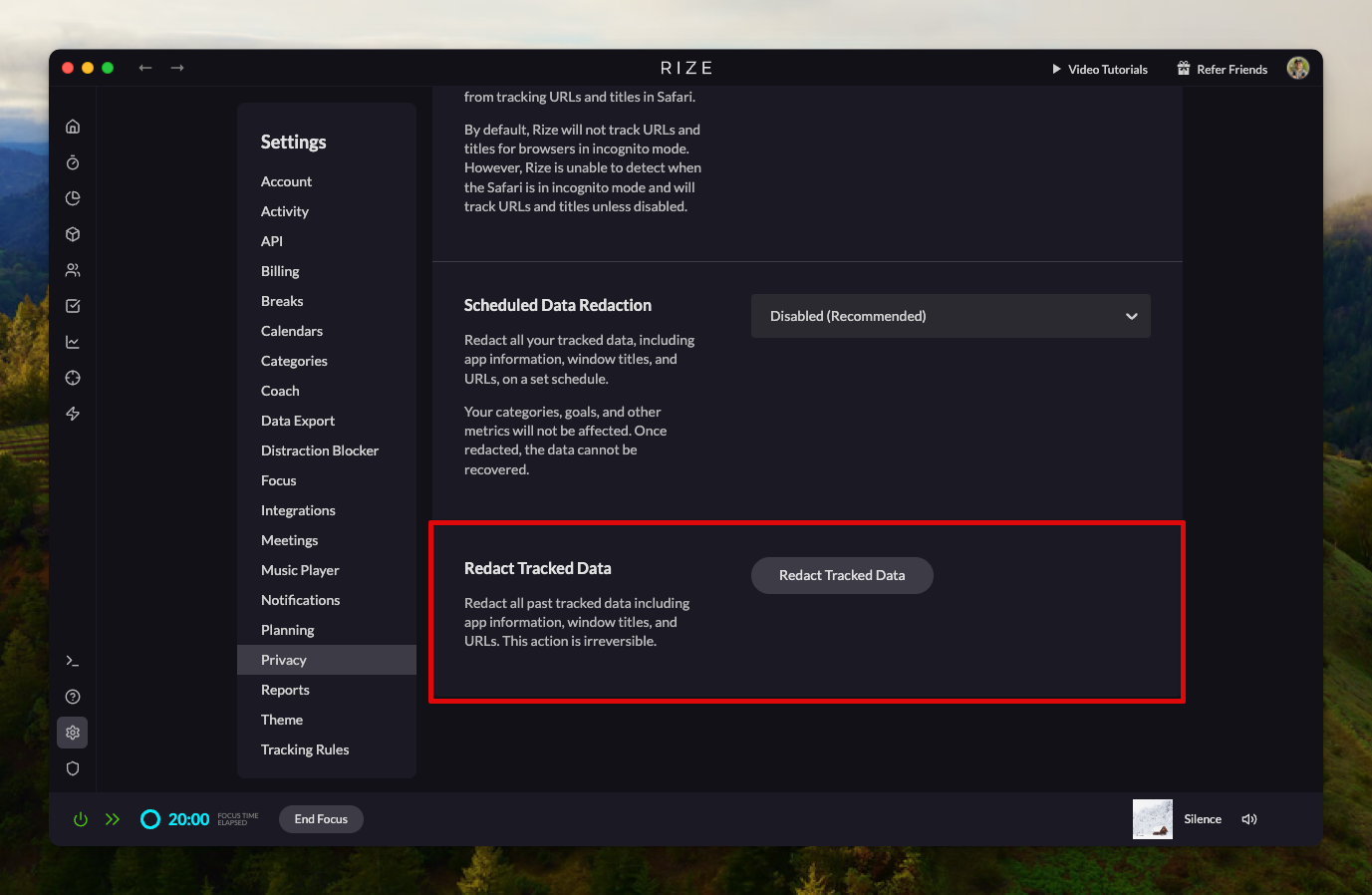
You can also have Rize redact your data on a set schedule in Settings > Privacy > Scheduled Data Redaction.
