Tracking Rule Packages
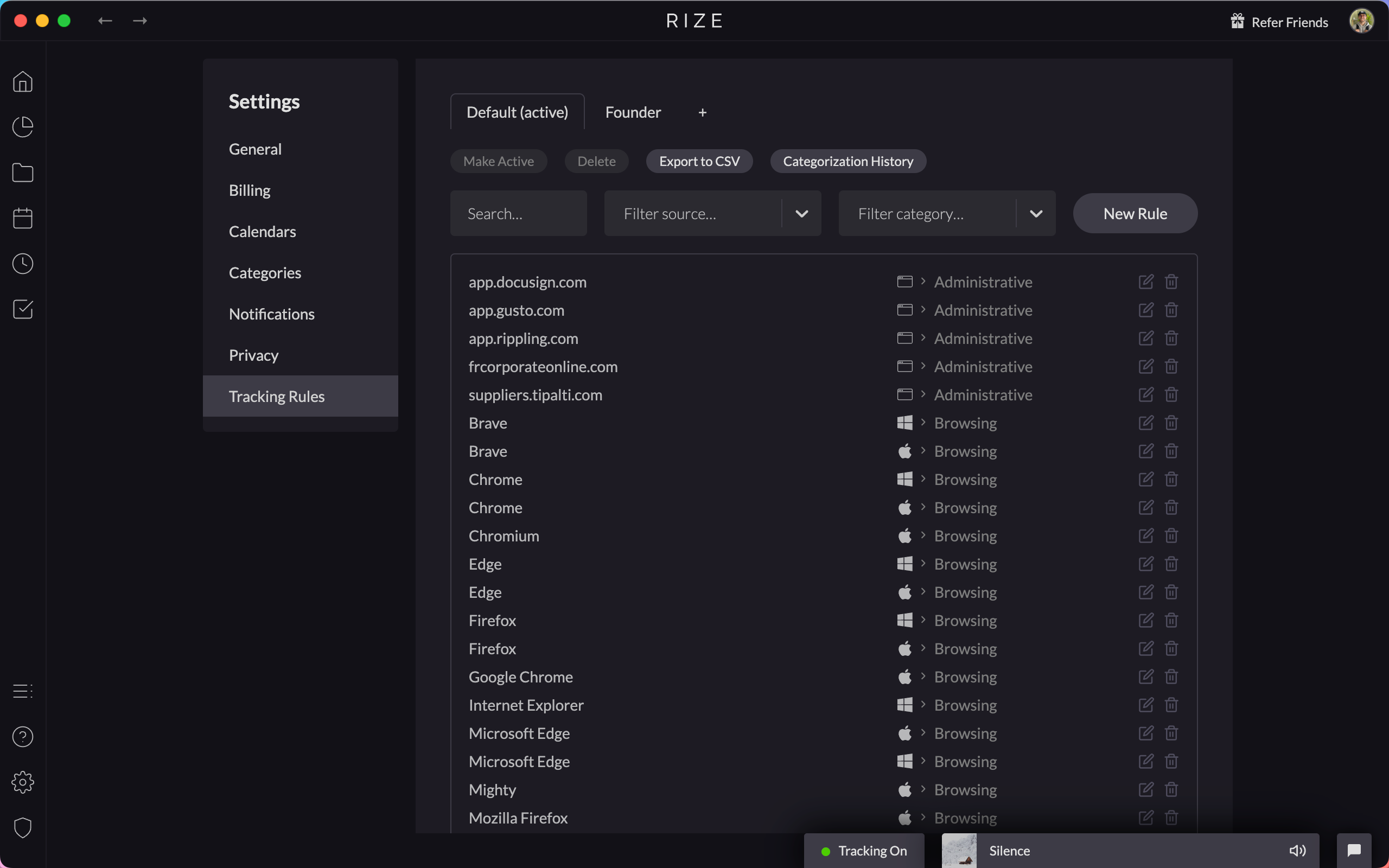
Tracking Rule Packages let you switch between different sets of tracking rules. This is useful if you work on different types of projects that require different categorization setups.
What Are Rule Packages?
A rule package is a saved collection of tracking rules. Instead of manually creating and deleting rules when switching between different work contexts, you can save your current rules as a package and switch between them.
Managing Rule Packages
Navigate to Settings > Tracking Rules to manage your rule packages.
Creating a Package
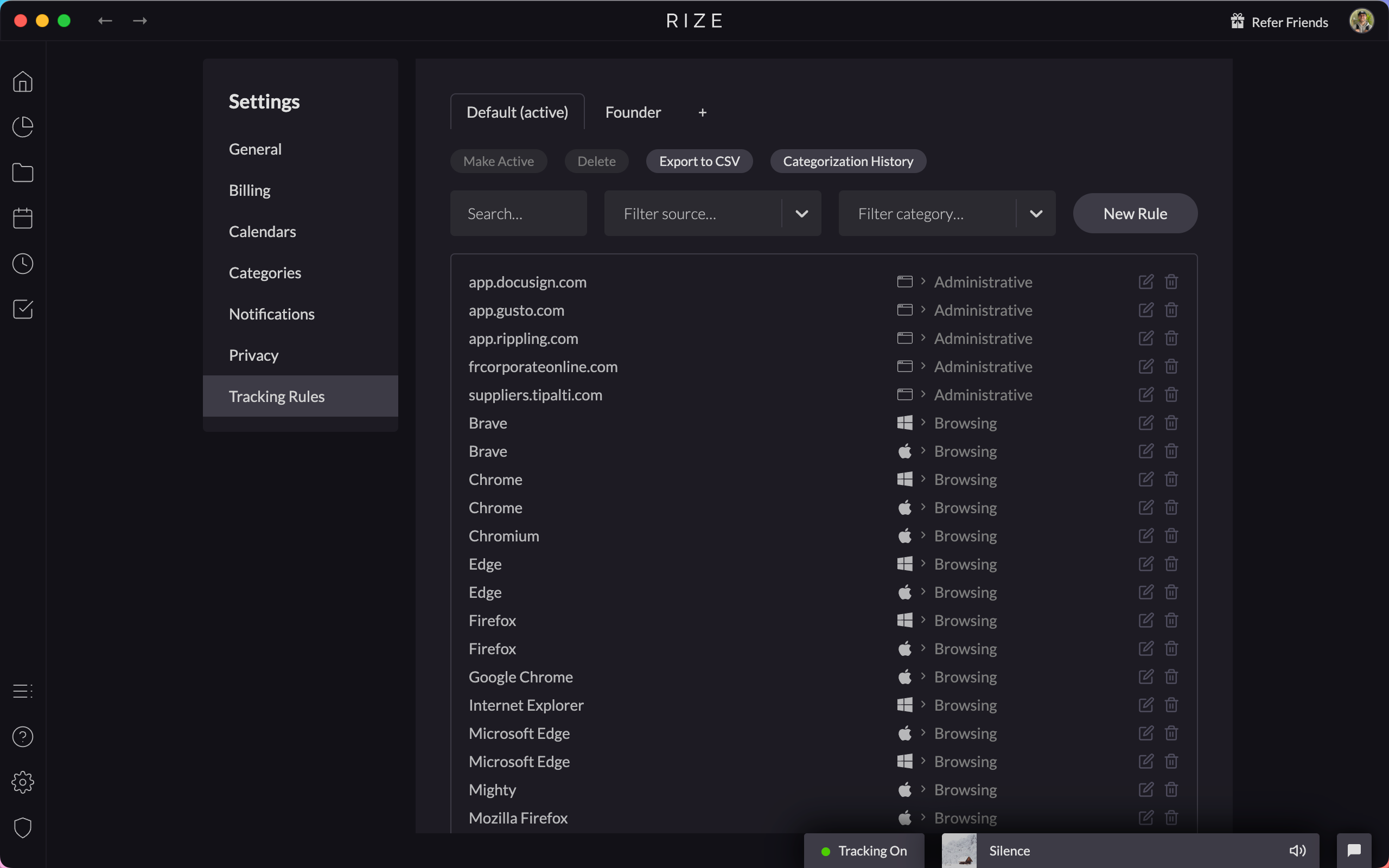
- Set up your tracking rules the way you want them
- Click "Save as Package" in Settings > Tracking Rules
- Give your package a descriptive name (e.g., "Client A Rules" or "Development Focus")
Switching Between Packages
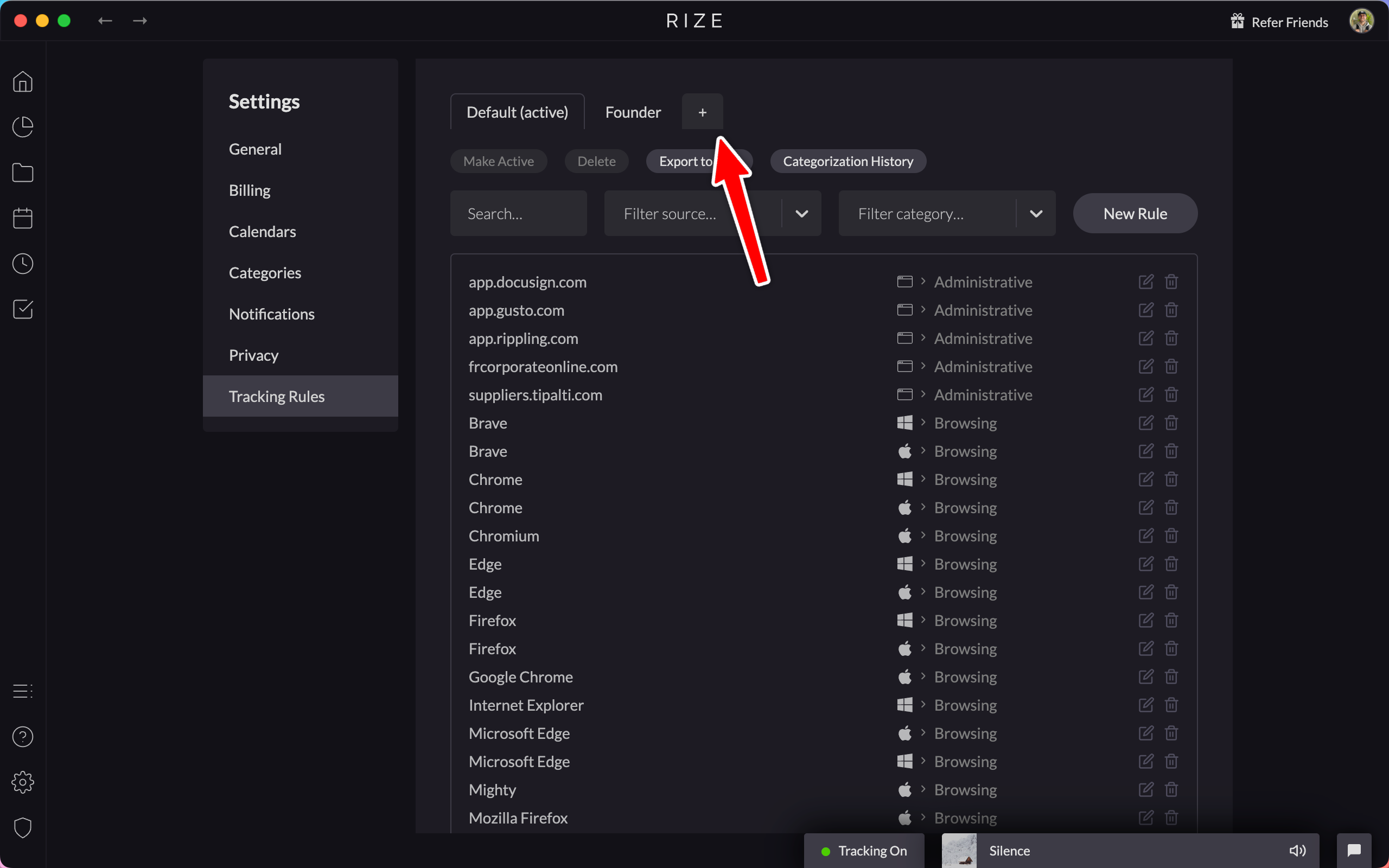
Select a different package from the dropdown to instantly switch your active tracking rules. Your previous rules are preserved in their package.
Import and Export
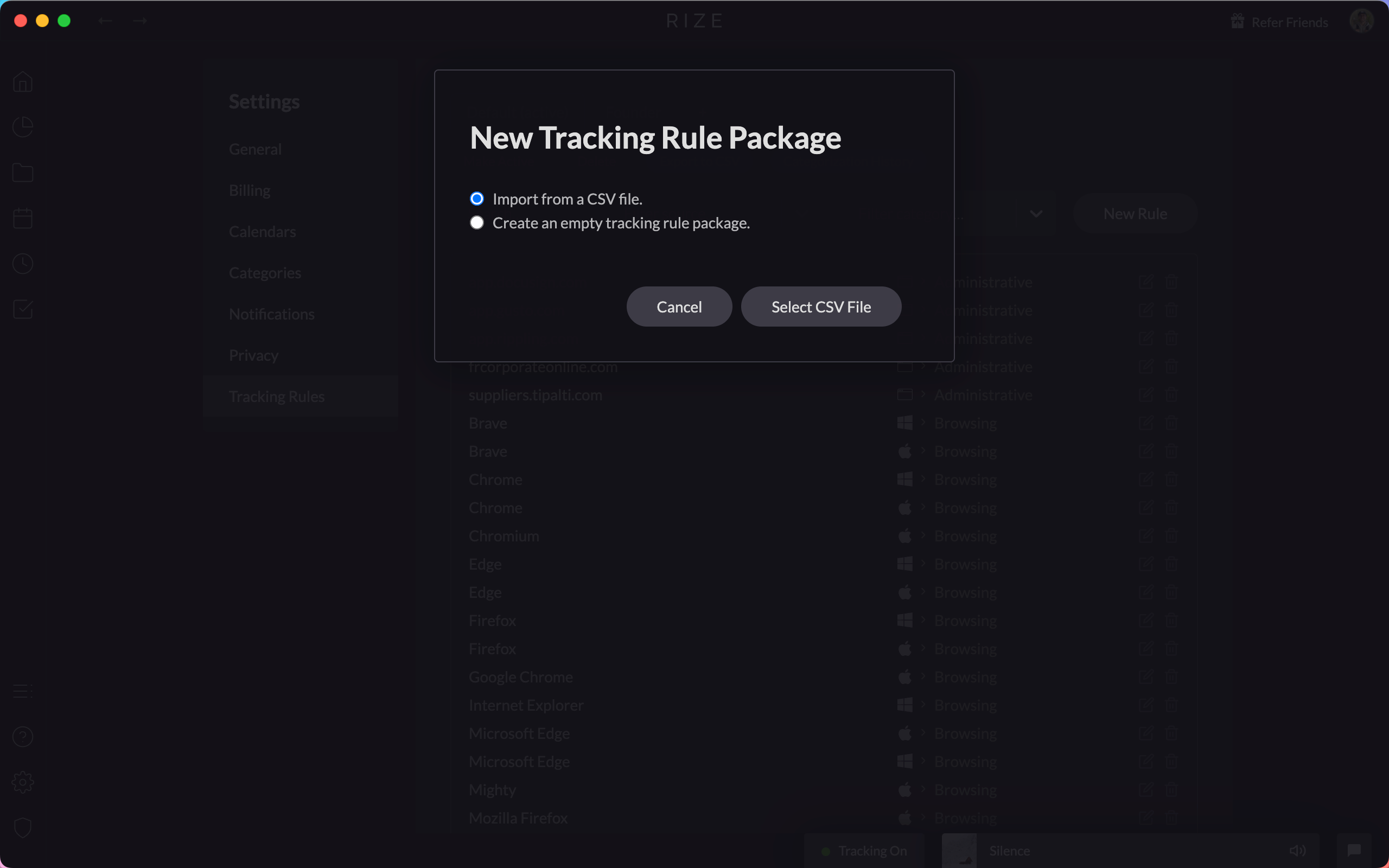
- Export: Save your rule package as a CSV file for backup or sharing
- Import: Load a rule package from a CSV file
This is useful for sharing rule configurations across team members or backing up your setup.
Viewing Categorization History
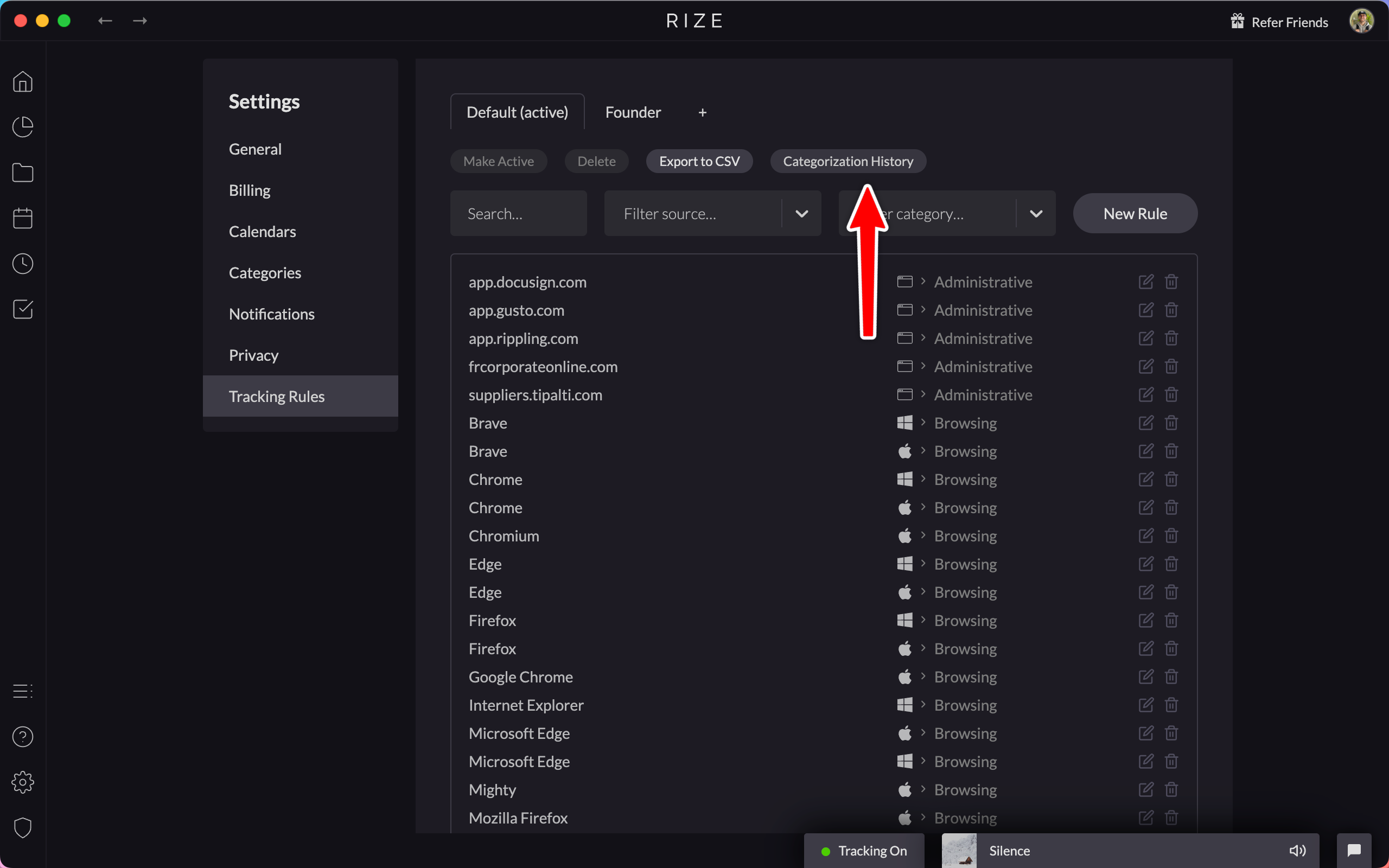
You can view the history of your tracking rule changes and see how your categorization has evolved over time.
Use Cases
- Freelancers: Switch between different client rule sets
- Developers: Separate rules for coding vs. management work
- Agencies: Different rule packages for different project types
- Role Changes: Quickly adapt when your work focus shifts
Combine rule packages with custom AI instructions for the most accurate time tracking across different work contexts.