Configuring Teams with Team Settings
You can find the settings for each of your Teams in Teams > [Team Name] > Settings.
Changing Team Name
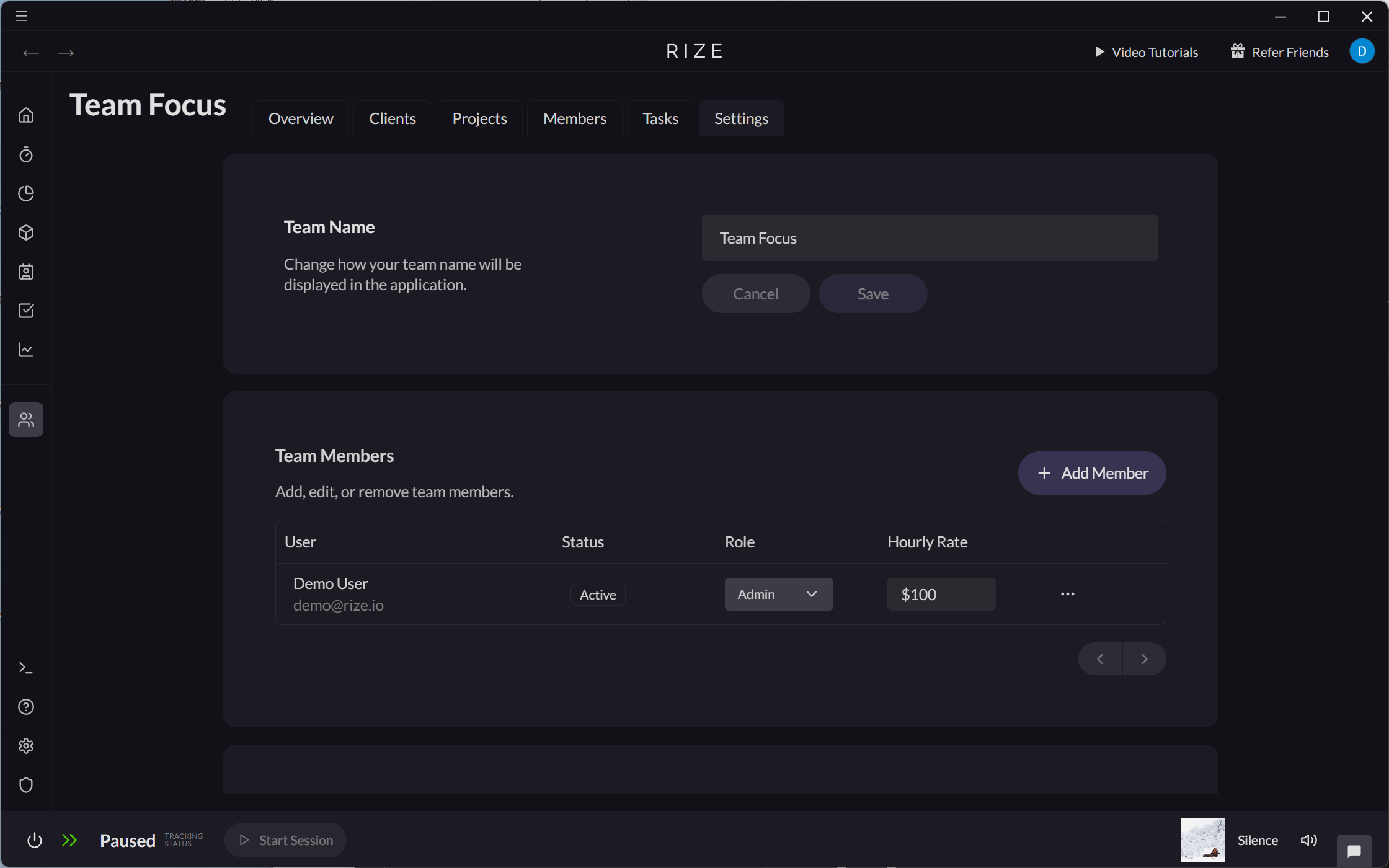
You can change your Team's name in Teams > [Team Name] > Settings > Team Name.
Managing Team Members
Team members are managed from the organization Members page — the Members link in team settings takes you there, pre-filtered to your team.
Learn more about adding and managing team members at Managing Members.
Changing Team Currency
You can change the currency used for your Team's billing calculation in Teams > [Team Name] > Settings > Currency.

Changing Billing Rate Strategy
You can change select your Team Billing Strategy from Teams > [Team Name] > Settings > Billing Rate Strategy.
Learn more about Team Billing Rate Strategy at Teams Billing Settings.
Changing Team Time Zone
You can change select your Team's Time Zone from Teams > [Team Name] > Settings > Time Zone.
End of Day Auto-Approve Time Entries
You can enable automatic approval of time entries at the end of each day for your team. When enabled, time entries will be automatically approved at the end of the day, reducing manual review work.
- Navigate to Teams > [Team Name] > Settings.
- Find the "End of Day Auto-Approve" setting.
- Enable or disable the feature as needed.
When End of Day Auto-Approve is enabled, time entries will be automatically approved at the end of each day. You can still manually review and modify entries before they are auto-approved.
Org-Level Entity Controls
Org admins can control which entity columns are visible across the entire organization. Navigate to your Workspace Settings (available to org admins) to toggle which entity types your org uses:
- Clients: Toggle client tagging on or off for the org.
- Projects: Toggle project tagging on or off.
- Tasks: Toggle task tagging on or off.
- Categories: Toggle category-based tracking on or off.
- Billable Hours: Toggle billable tracking on or off.
When an entity type is toggled off, it is hidden from the review panel, tag suggestions, and reporting throughout the app. The AI will only generate recommendations for the entity types that are enabled. This simplifies the UI and the AI logic for teams that only need a subset of the full Client → Project → Task hierarchy.
For example, if your team only tracks time to tasks, you can toggle off Projects and Clients. The review panel will then only show Task tag suggestions, and the AI will only recommend tasks.
These org-level toggles are separate from per-user suggestion settings. Org admins control the global visibility, while individual users can still fine-tune their own suggestion preferences within the enabled entity types.
Workspace Customization
Org admins can also customize their workspace from the Workspace Settings page:
- Logo: Upload a custom logo for your organization that appears in the sidebar and reports.
- Organization Name: Set or update your organization’s display name.
- Invoicing Information: Add invoicing details (company name, address, tax ID) if you are using Rize’s invoice feature.
Deleting Your Team
You can delete your Team from Teams > [Team Name] > Settings > Delete Team.